
The VPS firewall
What this is, and why it exists
Linux VPS and Storage VPS come with a managed firewall (in Manage VPS, https://vpsdime.com/myservices) at our network edge. By default it blocks the internet from reaching the application ports most often attacked: databases and datastores (PostgreSQL, MSSQL, MongoDB, Redis, Memcached), search and messaging (Elasticsearch, Apache Solr, RabbitMQ), and a handful of other commonly exposed services (Docker API, Ollama, ZooKeeper, Erlang/epmd, Selenium Grid). It does not touch the ports you normally need open, SSH (22) and web (80/443). The Firewall tab lists every blocked app with its exact ports.
The point is to stop the single most common way VPSes get compromised: a database or cache left listening to the whole internet with a weak or default password. With this on, those services are reachable only from sources you explicitly allow.
This is the network firewall, found on Linux and Storage VPS. It's separate from the SSH firewall that blocks brute-force logins on port 22. Premium and Windows VPS don't have this tab.
Exactly what's blocked
| Application | Ports |
|---|---|
| MongoDB | tcp/27017, tcp/27018, tcp/27019 |
| MSSQL | tcp/1433 |
| PostgreSQL | tcp/5432, tcp/5433, tcp/5434, tcp/5435 |
| Redis | tcp/6379 |
| Elasticsearch | tcp/9200, tcp/9300 |
| Apache Solr | tcp/8983 |
| Memcached | tcp/11211, udp/11211 |
| RabbitMQ | tcp/5672, tcp/15672, tcp/25672 |
| ZooKeeper | tcp/2181, tcp/2888, tcp/3888 |
| Docker API (plain HTTP) | tcp/2375 |
| Selenium Grid | tcp/4442, tcp/4443, tcp/4444 |
| Ollama | tcp/11434 |
| Erlang Port Mapper (epmd) | tcp/4369 |
Everything else is untouched: SSH (22), HTTP/HTTPS (80/443), mail, DNS, game servers, VPN tunnels, and any custom application port. If your workload doesn't use anything in the table, the firewall is already doing the right thing for you with no action needed.
The thing you'll most often use it for
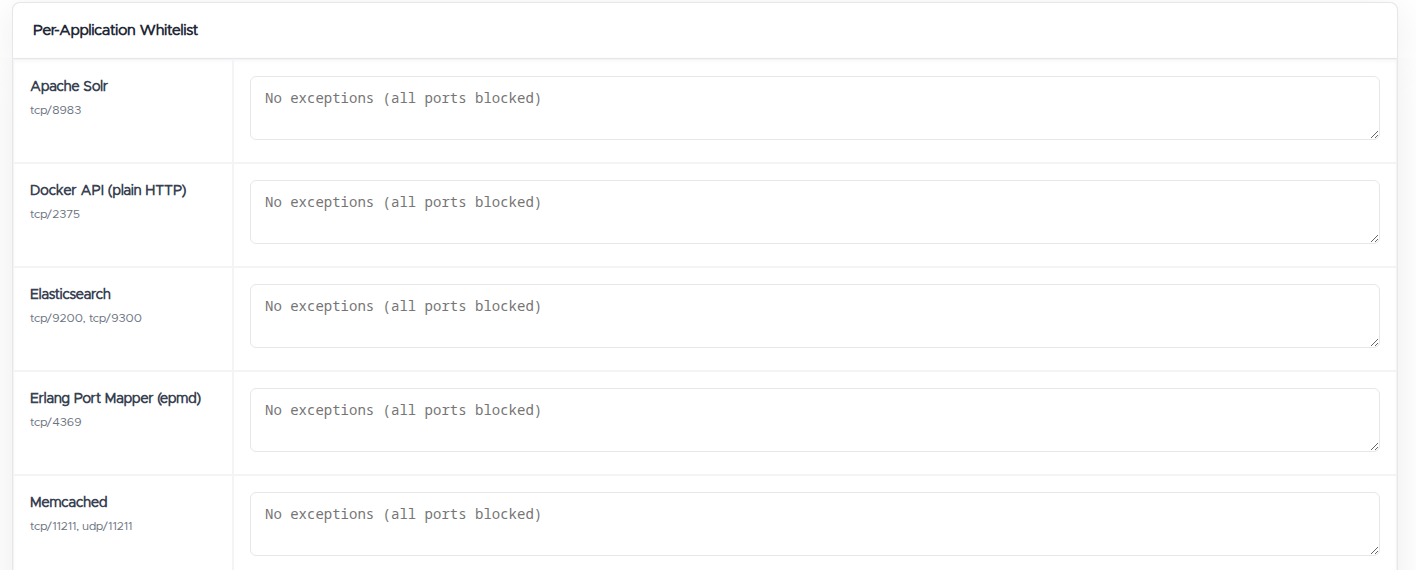
"I can't connect to my database (or Redis, etc.) from my app or laptop." That's the firewall doing its job, the port is blocked by default. To allow it, add the IP that needs access to that app's row in the Per-Application Whitelist and save. Access opens immediately.
Two ways to allow access
- Per-Application Whitelist (recommended). Open one blocked app to specific sources, for example allow your web server's IP to reach the database port, and nothing else. This is the safe choice: you open only what you need, to only who needs it.
- Global Whitelist. Trust an IP or subnet across all apps on this VPS, bypassing every per-app block. Handy for a fixed admin IP like your office, but broad, so use it sparingly.
Your own VPSes with us already trust each other automatically, so traffic between your servers needs no whitelisting.
What to enter
One entry per line, in any of these forms:
- Single IPv4:
203.0.113.5 - IPv4 subnet (up to /16):
203.0.113.0/24 - Single IPv6:
2001:db8::1 - IPv6 subnet (up to /48):
2001:db8::/64
Limits: up to 64 entries per list, and a catch-all (0.0.0.0/0 or ::/0) isn't allowed, whitelisting the whole internet would defeat the purpose. Changes apply immediately, no reboot.
Turning protection on or off
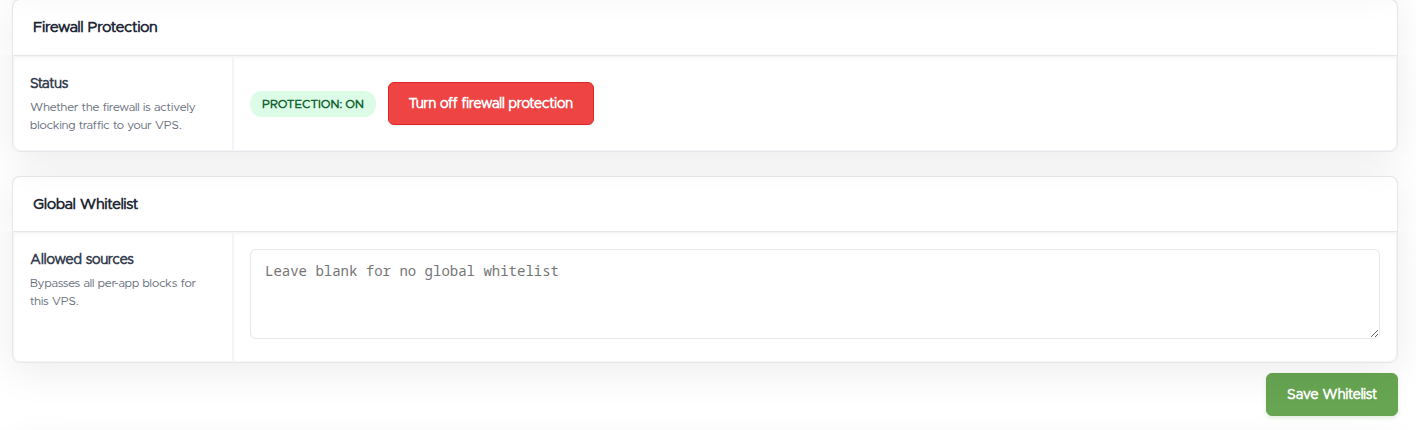
The Status shows whether the firewall is actively blocking. You can turn it off if you'd rather run your own firewall inside the VPS (ufw, firewalld, iptables, CSF), but then locking those ports down is entirely on you. Our advice: keep it on unless you already run a properly configured firewall yourself. It's a free safety net.
Your whitelists aren't deleted when you turn protection off. They stay saved, and become active again the moment you turn it back on.
Good to know, and troubleshooting
- A port I whitelisted still won't connect. Check three things: the source IP is exactly right (your real public IP from a "what is my IP" site, not a LAN address); you added it to the correct app (or to Global); and the service inside the VPS is actually listening on that port and bound to a public address, not just
127.0.0.1. Check from inside the VPS withss -tulnp | grep :<port>, you want a LISTEN line on0.0.0.0or a public address. - It works from one location but not another. You whitelisted a single IP, add the other source too, or use a subnet if it's a range.
- I can't reach MySQL/MariaDB (port 3306). MySQL isn't in the default-blocked list, so this firewall isn't the cause. Check that the service is listening on a public address (not just
127.0.0.1) and any firewall running inside the VPS. - I opened SSH or HTTP and nothing changed. Those aren't blocked by this firewall to begin with. If you can't reach SSH, see My VPS is Down and the SSH firewall.
- My VPS can't connect out to something. Not this firewall, and not us: everything here filters inbound traffic only, and we don't filter or block any outbound connectivity at the network level. If your VPS can't reach a remote service, an API, a mail server, a payment endpoint, the block is either a firewall you run inside the VPS or, most often, the remote side refusing the connection (their firewall, rate limiting, or blocklists, some services block datacenter IP ranges wholesale). "Works from my home connection but not from the VPS" is the signature of remote-side filtering, and the fix lives with that service, not with a setting here.
Still need help?
You can open a support ticket. So we can help on the first reply, it's worth mentioning:
- the VPS hostname or IP,
- which app/port you're trying to reach and from which source IP,
- whether the service is listening inside the VPS.
Related questions
- "Why can't I connect to my PostgreSQL/MongoDB/Redis from outside?"
- "How do I open a port on my VPS?"
- "How do I whitelist my IP for a blocked service?"
- "What ports does the VPS firewall block by default?"
- "What's the difference between the per-app and global whitelist?"
- "Can I turn the firewall off and manage my own?"
- "Do you block or filter outgoing connections from my VPS?"
- "Why can't my VPS connect to a remote API or service?"