
Set up an authenticator app
What this is
Your account is always protected by two-factor authentication. By default we email you a one-time code at each sign-in. You can replace those emails with an authenticator app (like Google Authenticator) that generates a 6-digit code on your phone. App codes are faster, work offline, and don't depend on email delivery. Set it up at https://vpsdime.com/2fa.
You only need to set this up once.
Before you start
- You'll need to be signed in to your account.
- Install an authenticator app on your phone if you don't have one: Google Authenticator, Authy, 1Password, or any other TOTP app.
Steps
- Go to My Account → Two-Factor Authentication.
- You'll see "Email login codes are on." Click Set up an authenticator app.
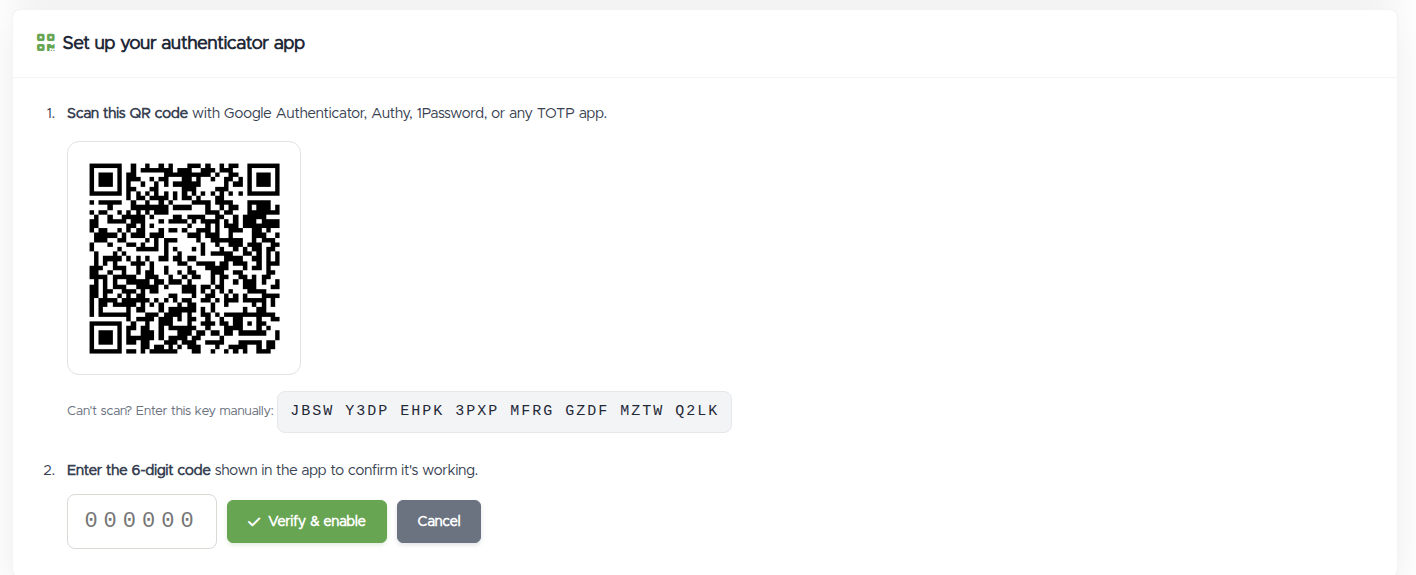
- The "Set up your authenticator app" panel opens with a QR code.
- In your authenticator app, add a new account and scan the QR code. (Can't scan? Under the QR there's a "Can't scan? Enter this key manually:" line with a key you can type into the app instead.)
- Your app now shows a 6-digit code that changes every 30 seconds. Type the current code into the 6-digit code box and click Verify & enable.
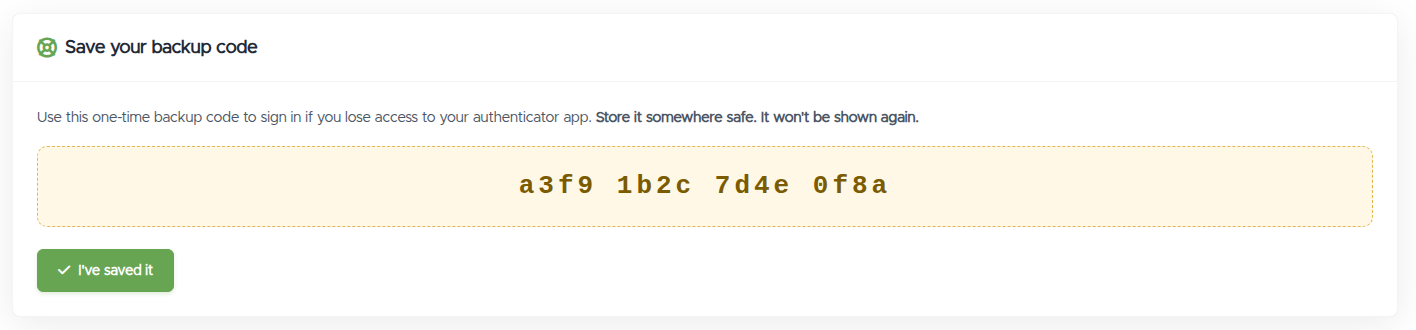
- We'll show you a backup code. Write it down and keep it safe (see What you'll see below). Click I've saved it when done.
That's it. From now on, signing in will ask for the code from your app instead of emailing you one.
What you'll see
- Status card: before setup it reads "Email login codes are on." After setup it reads "Authenticator app is on," with Regenerate backup code and Remove authenticator app buttons.
- Setup panel: a QR code, a manual entry key beneath it, and a Verify & enable button (plus Cancel).
- Backup code panel ("Save your backup code"): a single one-time code shown once. The page warns: "Store it somewhere safe. It won't be shown again." This code lets you sign in if you ever lose your phone. Save it before clicking I've saved it.
Troubleshooting
- "That code did not match" / the code isn't accepted. Authenticator codes are time-based, so this is almost always your phone's clock being slightly off. Turn on automatic date & time on your phone, then try the current code again. Also make sure you're typing the latest code (it changes every 30 seconds) with no spaces.
- You can't scan the QR code. Use the "Enter this key manually" key shown under the QR, then add the account in your app by typing that key instead.
- It says an authenticator app is already active. You've already set one up. To switch to a new phone or app, first click Remove authenticator app, then set it up again.
- You set up the app but lost or replaced your phone. Sign in using the backup code you saved during setup, then go to My Account → Two-Factor Authentication and remove or re-set the authenticator. If you don't have your backup code either, see I can't sign in.
Still need help?
You can open a support ticket. So we can help on the first reply, it's worth mentioning:
- the email address you sign in with,
- which authenticator app you're using (Google Authenticator, Authy, etc.),
- what happens and the exact message you see (a screenshot of the screen is ideal).
Related questions
- "How do I turn on two-factor authentication?"
- "How do I set up Google Authenticator / Authy / 1Password?"
- "How do I use an app for my login codes instead of email?"
- "Where do I add 2FA to my account?"
- "My authenticator code isn't working."