
Recover individual files
What this is
Browse Files opens a temporary web file browser onto one of your backups, so you can find and recover specific files without restoring the whole VPS. When you find what you need, you can download it or copy it straight back onto your live VPS. You get access for about 4 hours, then it closes automatically. Start from https://vpsdime.com/backups.
This is for Linux VPS (with Nightly Backups) and Premium VPS. On a Windows VPS, file recovery is handled by our team, so open a ticket.
Before you start
- The backup is read-only. You're browsing a copy. Nothing you do here changes the backup or your live VPS.
- Access lasts about 4 hours. After that the file browser closes on its own. You can also stop it sooner.
- One operation at a time. While a file browser is open, you can't start a restore or a disk download on that VPS until you stop it.
- Keep the link private. The access link includes a key that opens your backup files. Don't share it.
Open the file browser
-
Go to Backups, open your VPS, and on the Available Backups tab find the backup you want.
-
Click Actions on that backup, then choose Browse Files in the Choose Action menu.
-
A File Browser Active panel appears with an access link and the time remaining (about 4 hours). Click Open to launch it, or Copy to copy the link.

-
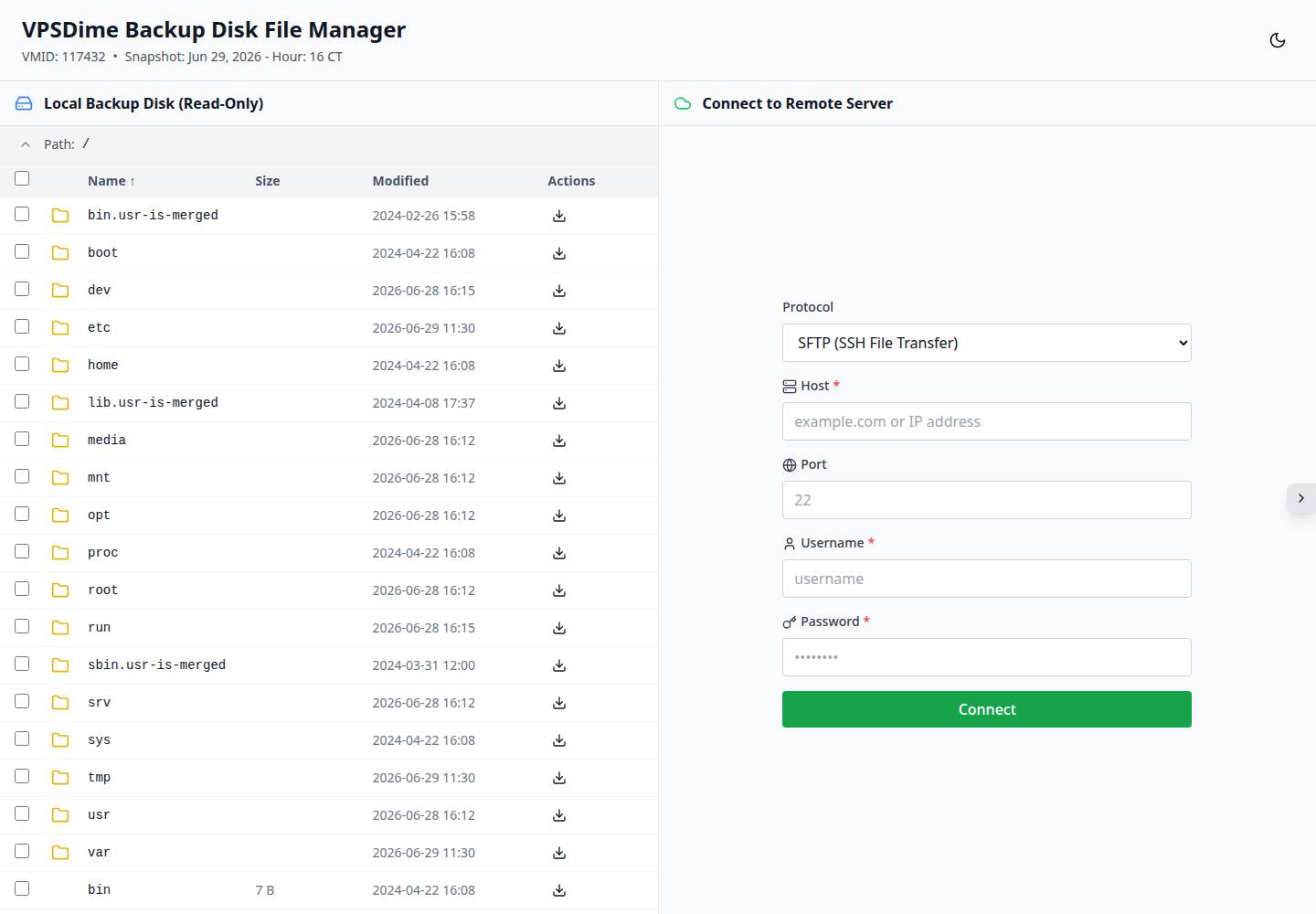
The VPSDime Backup Disk File Manager opens. The left side, Local Backup Disk (Read-Only), shows your backup's files.
Find and download files
- Move around: click a folder to open it; the Path at the top shows where you are and lets you go back up.
- Download one item: click the download icon on its row.
- Download several: tick the checkboxes, then click Download in the toolbar that appears.
- View a text file: click it to open the built-in editor, where you can read, Search, copy, or download its contents.
Copy files back to your VPS (or to another server)
The quickest way to put recovered files back is to connect to your own VPS and copy them across, no download needed:
- On the right, under Connect to Remote Server, choose SFTP as the Protocol.
- Enter your VPS's IP as the Host, 22 as the Port, and your VPS login (for example root) and password. Click Connect.
- Your VPS's filesystem appears on the right. Open the folder where the files belong.
- Copy files from the backup onto your VPS in any of these ways:
- Click the upload icon on a file's row.
- Tick several files and click Copy to Remote.
- Drag a file or folder from the backup onto your VPS.
- Click Disconnect when you're done.
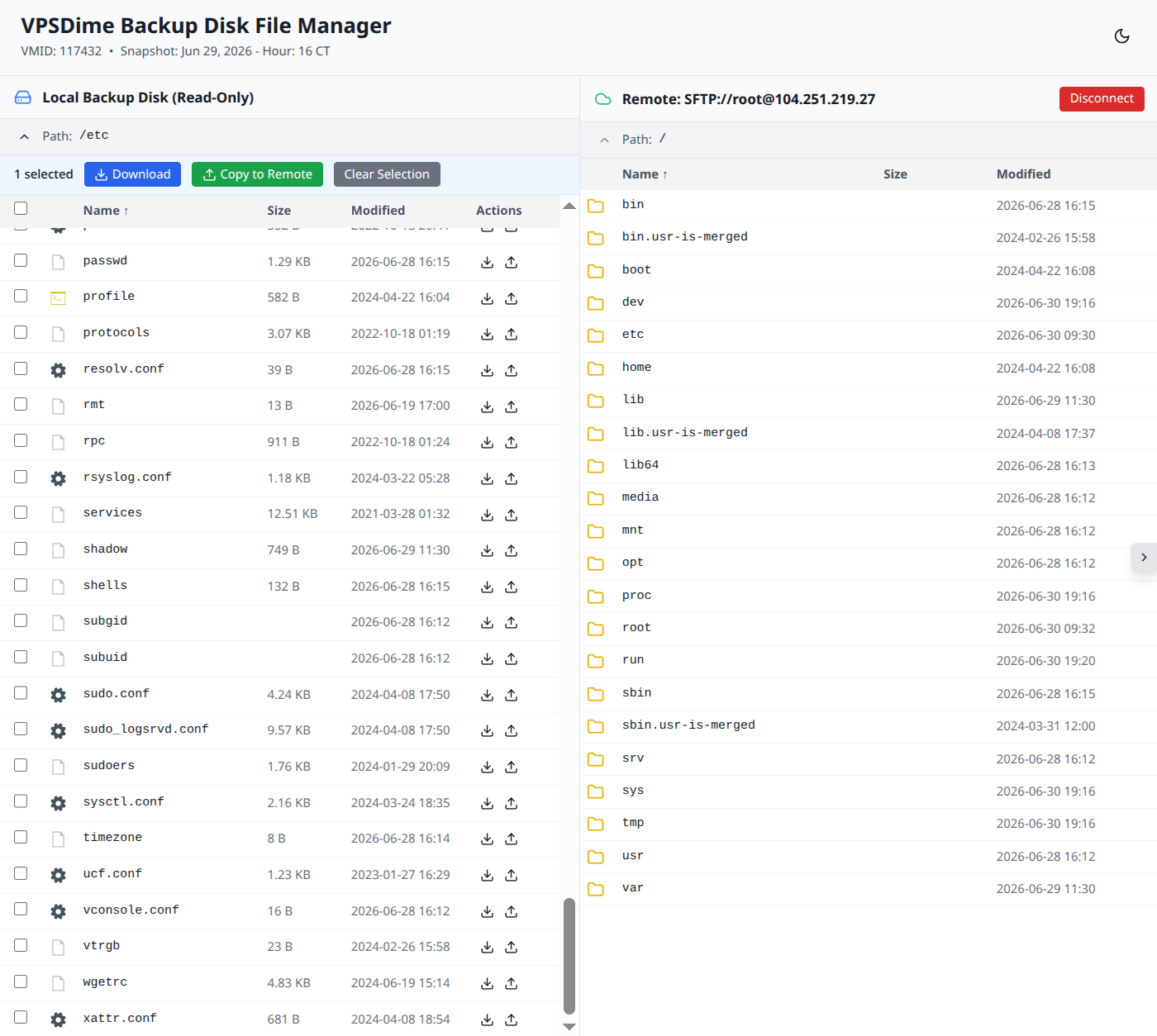
You can connect to any other server the same way, not just your VPS. The supported protocols are SFTP, FTP, S3, SMB, and WebDAV.
Restoring database files: read this before copying anything
Copying individual database files out of a backup (a single .ibd file, one table's files, or one database's subfolder) into a running MySQL, MariaDB, or PostgreSQL server will not work and can corrupt what you still have. A database's files are one consistent set: for MySQL/MariaDB that means the per-table files plus ibdata1, the redo logs, and the system schema together. Files copied in isolation don't match the rest of the set, and the server answers with errors like "tablespace id mismatch" or marks tables corrupt, often refusing to start at all.
The safe way to restore a database from a backup:
- Stop the database on your VPS first, so nothing writes while you work:
systemctl stop mysql(ormariadb/postgresql). - Set aside the current data directory before touching it, so you can always get back to where you are now:
mv /var/lib/mysql /var/lib/mysql.old(PostgreSQL:/var/lib/postgresql). Don't skip this even if the database is broken, "broken but present" still beats "gone". - Copy the entire data directory from the backup, not individual files. In the file manager, connect to your VPS over SFTP and copy the whole
/var/lib/mysqlfolder in one operation, everything in it, includingibdata1, theib_logfile*/ redo files, and themysqlsystem folder. The backup is taken while the server runs, so its files are only guaranteed to make sense as a complete set that the database can crash-recover from, exactly like after a power loss. - Fix ownership, since copied files usually arrive owned by root:
chown -R mysql:mysql /var/lib/mysql(PostgreSQL:chown -R postgres:postgresand check the directory is mode700). - Start the database and watch the log.
systemctl start mysql, then check the error log while InnoDB runs its normal crash recovery. If it refuses to start, work through MySQL or MariaDB won't start after a crash, and don't reach forinnodb_force_recoverybefore reading it.
If you only need one database or one table, restore the full directory anyway (into a copy, per step 2, your current data stays in /var/lib/mysql.old), start the server, and export what you need with mysqldump. For the future: a scheduled mysqldump to a file inside the VPS gives you logical dumps that restore per-database and per-table trivially, and those dump files are themselves picked up by the nightly backup, single files that are safe to recover individually.
When you're finished
- Go back to the Backups page and click Stop File Browser, or just leave it and it closes after about 4 hours.
- While the file browser is open, other backup actions for that VPS are blocked, so stop it when you no longer need it.
Troubleshooting
- My access link stopped working. The 4-hour window has ended, or the file browser was stopped. Start Browse Files again to get a fresh session.
- I can't start a restore or download. A file browser is still open for that VPS. Stop it first from the Backups page. See Restore your VPS from a backup.
- I need the whole disk, not single files. Use Download a full disk image instead.
- MySQL or MariaDB won't start after I copied database files back. This is what happens when files are copied individually instead of as the complete data directory. Follow the steps in Restoring database files above, your pre-restore copy from step 2 means nothing is lost, and see MySQL or MariaDB won't start after a crash.
- My connection to a remote server failed. Check the host, port, username, and password, and that the server allows connections from outside. Try again, or use Download and upload the files yourself.
- I have a Windows VPS. File recovery is handled by our team. Open a ticket.
Still need help?
You can open a support ticket. So we can help on the first reply, it's worth mentioning:
- the VPS hostname or IP,
- the backup date you're browsing,
- the files you're trying to recover,
- any error you saw (a screenshot helps).
Related questions
- "How do I recover a single file from a backup?"
- "Can I get files back without restoring the whole VPS?"
- "How long do I have to browse a backup?"
- "How do I download files from a backup?"
- "How do I copy recovered files back onto my VPS?"
- "Can I restore just a few files instead of the whole VPS?"
- "Can I copy files from a backup straight to another server?"
- "Which transfer methods can I use (SFTP, FTP, S3, SMB, WebDAV)?"
- "How do I recover a file from a Windows VPS backup?"
- "How do I restore a database from a backup?"
- "Why won't MySQL start after I copied files from a backup?"
- "Can I restore just one database or table from a backup?"
- "Is it safe to copy .ibd files from a backup?"