
Upgrading or downgrading your VPS
What this is for
The Upgrade/Downgrade tab moves your VPS to a different plan, more (or less) CPU, RAM, storage, and traffic. Reach for it when the Graphs show you're consistently hitting a limit (upgrade), or paying for more than you use (downgrade).
What to expect (Linux VPS)
On a Linux VPS, changing plan is live and instant:
- No downtime, the VPS keeps running through it.
- No data loss, everything on the disk stays put.
- Your IP stays the same.
- Running services keep serving.
The change applies as soon as you pay the upgrade invoice.
On Premium VPS and Windows VPS, applying new resources can involve a short reboot. If the timing matters to you on those, ask us first.
How to do it
- Open Manage VPS (via https://vpsdime.com/myservices), then Upgrade/Downgrade.
-
You'll see the available plans with their CPU, Memory, Storage, Traffic, price, and a Prorated Due Now, the amount for the rest of your current billing term. Your current plan is marked.
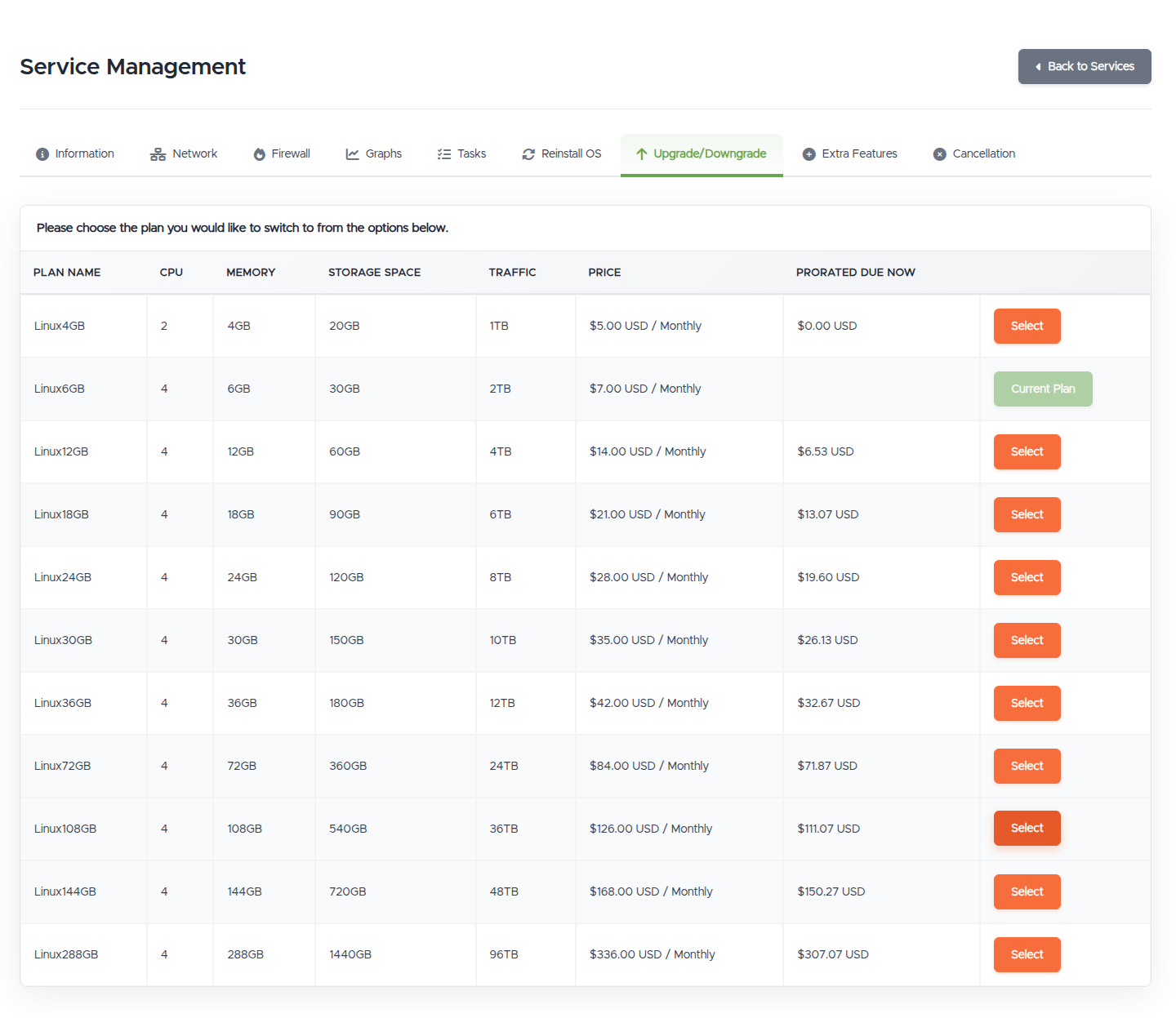
- Click Select on the plan you want and pay the prorated invoice. The new plan applies (instantly on Linux VPS).
From then on you're billed at the new plan's rate on your normal cycle.
Downgrading
Switching product lines (say Linux VPS to Premium VPS) isn't a resize. The Upgrade/Downgrade tab moves you between plans within your product line; there's no in-place conversion from one line to another. The path is ordering the new VPS and moving your data across, the whole procedure, including the two-pass rsync and the new-IP checklist, is in Migrating a VPS to a new server.
Linux to Windows (or Windows to Linux) can't be migrated at all. They're different operating systems: applications are installed differently, services are configured differently, and a Linux disk means nothing to Windows. If you want to switch, order the new Windows VPS (or Linux VPS), reinstall your applications there, copy over the data files you need (over SFTP), and then cancel the old service.
Premium VPS is upgrade-only. You can move a Premium VPS up to a bigger plan, but not back down to a smaller one, so pick a Premium size you won't need to shrink.
On Linux VPS and Windows VPS, downgrading works the same way as upgrading, with one catch: the smaller plan must have room for your data. If your disk usage is close to (or above) the smaller plan's disk size, some downgrades are blocked until you free up space, you need a couple of GB free after the downgrade. Delete or move data first, then try again.
Downgrades don't come with a refund or credit for the difference, you're simply billed less from the next cycle.
Plan change vs add-ons
- Use Upgrade/Downgrade to move between whole plans.
- Use Extra Features to add resources one at a time (extra storage, vCPU, traffic, or IPs) without changing your base plan.
If you only need, say, more disk, adding storage in Extra Features is often simpler than jumping to a bigger plan.
Good to know, and troubleshooting
- The options are missing, or I see "Upgrade Unavailable." You usually have a pending order on the VPS (for example an add-on you started but haven't paid). Finish or cancel it and the plan options come back. The tab is also unavailable while a service is pending provisioning, cancelled, or terminated.
- A smaller plan I want is greyed out. On Linux VPS, your disk usage is too high for it, free up space and retry. On Premium VPS, smaller plans aren't offered at all, Premium is upgrade-only.
- Will upgrading interrupt my sites? On Linux VPS, no, it's live and your IP doesn't change, so nothing needs reconfiguring.
Still need help?
You can open a support ticket. So we can help on the first reply, it's worth mentioning:
- the VPS hostname or IP,
- the plan you want to move to,
- whether you're upgrading or downgrading, and any message you saw.
Related questions
- "How do I upgrade or downgrade my VPS?"
- "Will upgrading my VPS cause downtime or change my IP?"
- "Will I lose my data when I resize?"
- "How much does an upgrade cost right now (proration)?"
- "Why can't I downgrade to a smaller plan?"
- "Can I downgrade my Premium VPS?"
- "Can I convert my Linux VPS to a Premium VPS?"
- "Can I switch my Linux VPS to a Windows VPS?"
- "Should I upgrade the plan or just add storage/CPU?"