
How can I use the Windows Troubleshooter?
What this is
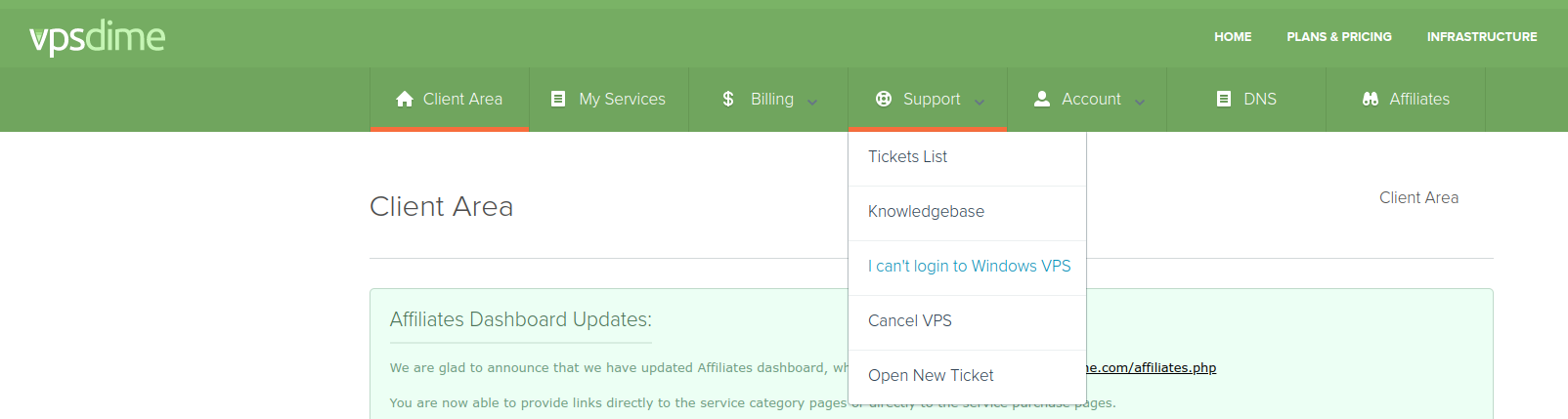
An automated checker for Windows VPS connection problems, use it before opening a ticket, because it fixes the common causes on the spot. It's at https://vpsdime.com/wintroubleshooter, or from your client area: Support in the top menu, then "I can't login to Windows VPS". (It's the Windows counterpart of the checks My VPS is Down runs.)
What it does
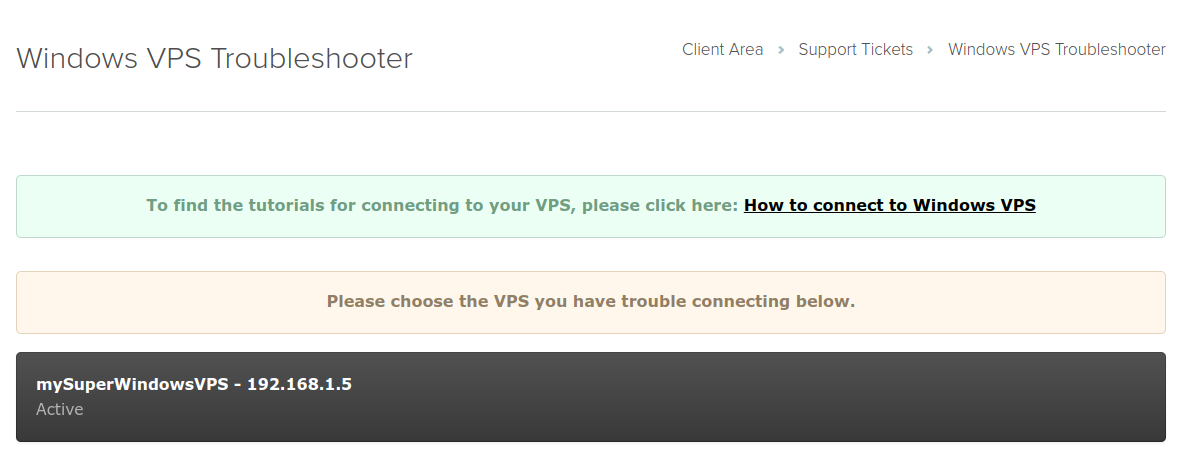
- Pick the VPS you can't reach.
- It checks three things automatically: the VPS is powered on, Remote Desktop is enabled, and the Administrator password on file works.
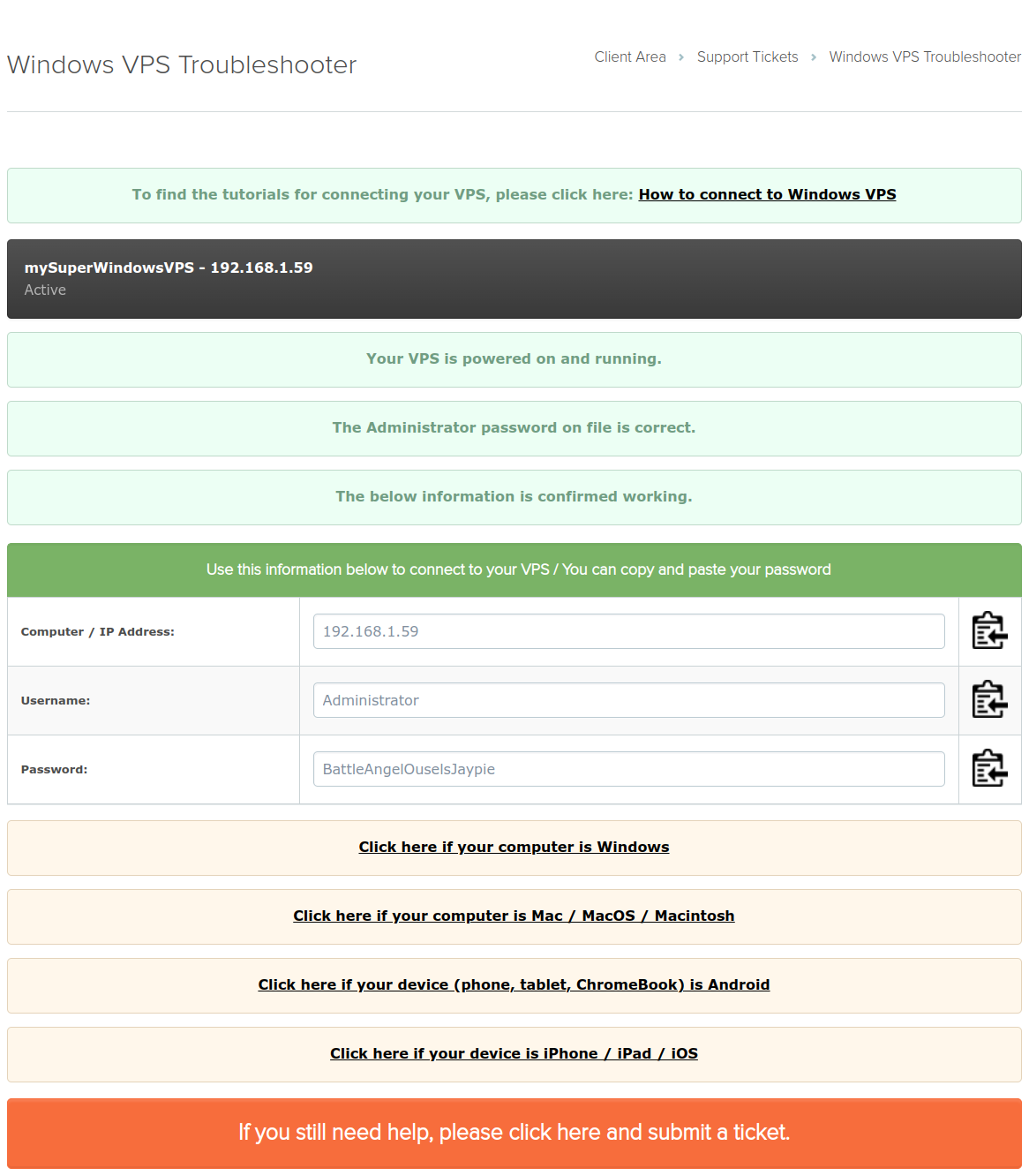
- Then it acts on what it finds:
- All three checks pass: it shows your connection credentials with copy-to-clipboard buttons (IP,
Administrator, password), paste them straight into your RDP client, plus links to the per-device connection guides. - The password on file doesn't work: it offers a reset option on the same page. The reset works through the VPSDime Support Account (the service user starting with
DIME); if that account was removed from your server, the reset can't run and a manual reset by our team carries a $25 fee.
If it doesn't solve it
Finish the flow, it escalates into a support ticket with the diagnostics already attached, which is the fastest route to a useful first reply.
When even the troubleshooter can't reach it
The troubleshooter's checks need the VPS's OS to respond. A machine that has been driven deep into memory exhaustion (pagefile thrashing) can't answer them, and the Console won't help either, it shows the screen of an OS too starved to react. For that state, use Reset on the manage page for a hard reboot, then see My Windows VPS is frozen or unresponsive for why it happened and how to keep it from recurring.
Still need help?
You can open a support ticket. So we can help on the first reply, it's worth mentioning:
- the VPS hostname or IP,
- what the troubleshooter's checks reported,
- what your RDP client says when you try to connect.
Related questions
- "How do I use the Windows Troubleshooter?"
- "I can't log in to my Windows VPS, what do I run first?"
- "How do I check whether RDP is enabled?"
- "Where do I reset my Windows VPS password myself?"