
Email login codes
What this is
Unless you've set up an authenticator app, this is your second sign-in step: after your password (or a Google/GitHub sign-in), we email a 6-digit code to your account address. Enter it to finish signing in. Sign in at https://vpsdime.com/clientarea.
Steps
- Sign in as usual. You'll land on a "Verify It's You" screen.
- Check your email for a message titled "Confirm your login request" containing a 6-digit code.
- Type the code into the box and continue. The code is good for 5 minutes.
Prefer not to wait for emails? Set up an authenticator app for instant codes that work offline.
What you'll see
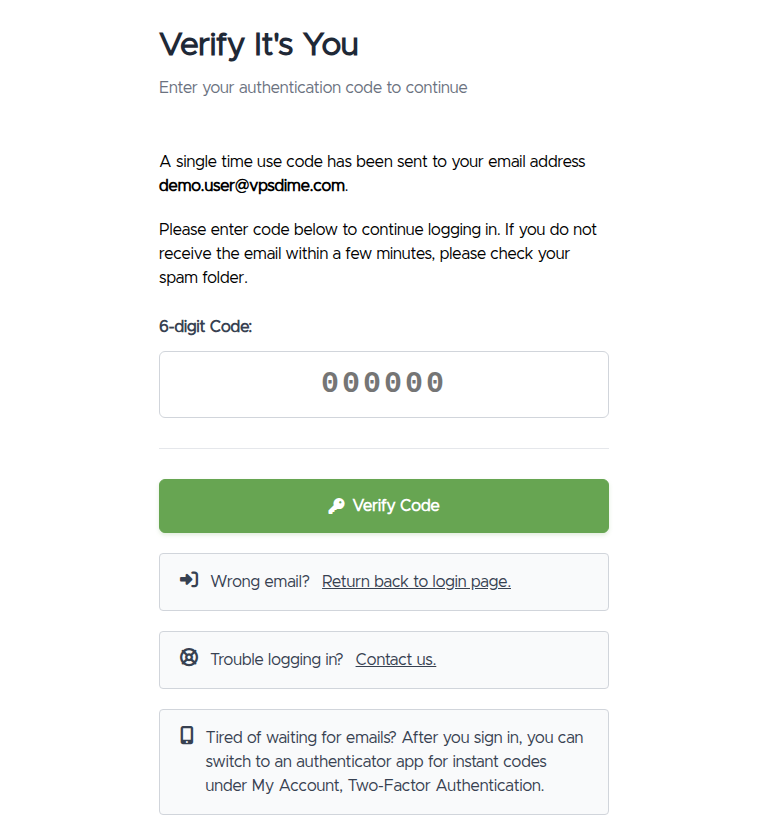
- The verification screen tells you a code was sent to your email and gives you a box to enter it.
- The email comes from VPSDime with the subject "Confirm your login request" and shows the code plus the IP address the sign-in came from.
Troubleshooting
- The code didn't arrive. Give it a minute, then check your spam/junk folder. Make sure you're checking the inbox for the exact email address on your account. Still nothing? Start the sign-in again to send a fresh code.
- The code says it's wrong or expired. Codes expire after 5 minutes and each new sign-in sends a new one, so always use the most recent email and ignore older codes.
- I never receive codes (every time). Email may not be reaching you reliably. The best fix is to set up an authenticator app, which doesn't depend on email. If you can't, contact us below.
- My account email is hosted on my own VPS, and that VPS is suspended or down. The code can't be delivered because the mail server it goes to is the thing that's offline. See the section below, we can verify you and temporarily lift the email code so you can get back in.
- Wrong email address on the account. If codes go to an old address you no longer control, open a ticket and we'll help you recover access and update it.
My email runs on my VPS, and the VPS is suspended
A special case worth naming: you host your own mail server on your VPSDime VPS, an invoice went overdue, the VPS got suspended, and now the login code can't reach you because the mail server it would be delivered to is the thing that's down. You can't sign in to pay the invoice, and paying the invoice is what would bring your email back.
Here's how we break that loop:
- Contact us from any email address you have access to, a personal Gmail is fine: open a ticket.
- In the message, tell us the email address of your VPSDime account, and confirm one of the following so we can verify the account is yours:
- one of your VPS IP addresses, or
- an invoice number from your account, or
- the address on file for the account.
- Once verified, we temporarily disable the email login code on your account so you can sign in with just your password.
- Sign in and settle the invoice. The email code protection re-enables automatically after you're back in, there's nothing to switch back on.
To make sure this never happens again, set up a sign-in method that doesn't depend on your email being reachable:
- Set up an authenticator app, codes are generated on your phone, offline, no email involved, or
- Connect your Google or GitHub account and sign in through them.
Still need help?
You can open a support ticket. So we can help on the first reply, it's worth mentioning:
- the email address you sign in with,
- whether you checked spam and roughly when you requested the code,
- a screenshot of the verification screen.
Related questions
- "I didn't get my login code."
- "My verification code isn't working."
- "Where is my 2FA email?"
- "Can I stop waiting for email codes?"
- "My mail server is on my VPS and it's suspended, how do I log in?"
- "I can't receive the login code because my email is down."
- "Can you disable the email code so I can sign in and pay my invoice?"