
Getting help
What this is
The ways to reach us and actually get a problem solved: opening a support ticket, tracking it, and checking whether what you're seeing is a wider outage. It's all under Support in the client area, starting at open a ticket. Tickets are opened from your account, being signed in is what lets us verify it's you and act on your services. The one exception is pre-sales questions: you can ask those without an account.
Two things often solve a problem faster than waiting on a reply, so try them first:
- VPS unreachable? Run My VPS is Down. It checks the VPS, frequently fixes the cause on the spot (a blocked IP, disabled password login, a forgotten password), and if it can't, it hands us the diagnostics so the first reply is already useful.
- Think it's an outage? Check the service status announcements (below) before opening a ticket. If a node or the network is affected, it's posted there and we're already on it.
Guest tickets and service verification
When your ticket is about an existing service, always open it from your client area, signed in. Being signed in is what proves the request comes from the account holder, which is what lets us discuss and act on the service at all. A guest ticket (opened without signing in) about an existing service can't be verified, so it won't be worked on as-is, you'll be redirected to sign in and continue from your account.
- Can't sign in? That's the thing to fix first, and it has its own guide: I can't sign in. Recovering access to the account is the path to getting service help, a guest ticket doesn't bypass it.
- Pre-sales questions remain the one exception: no account needed, ask away as a guest.
Which department, and how urgent
Opening a ticket asks you for a department and a priority. Neither is complicated, but both route your ticket, so:
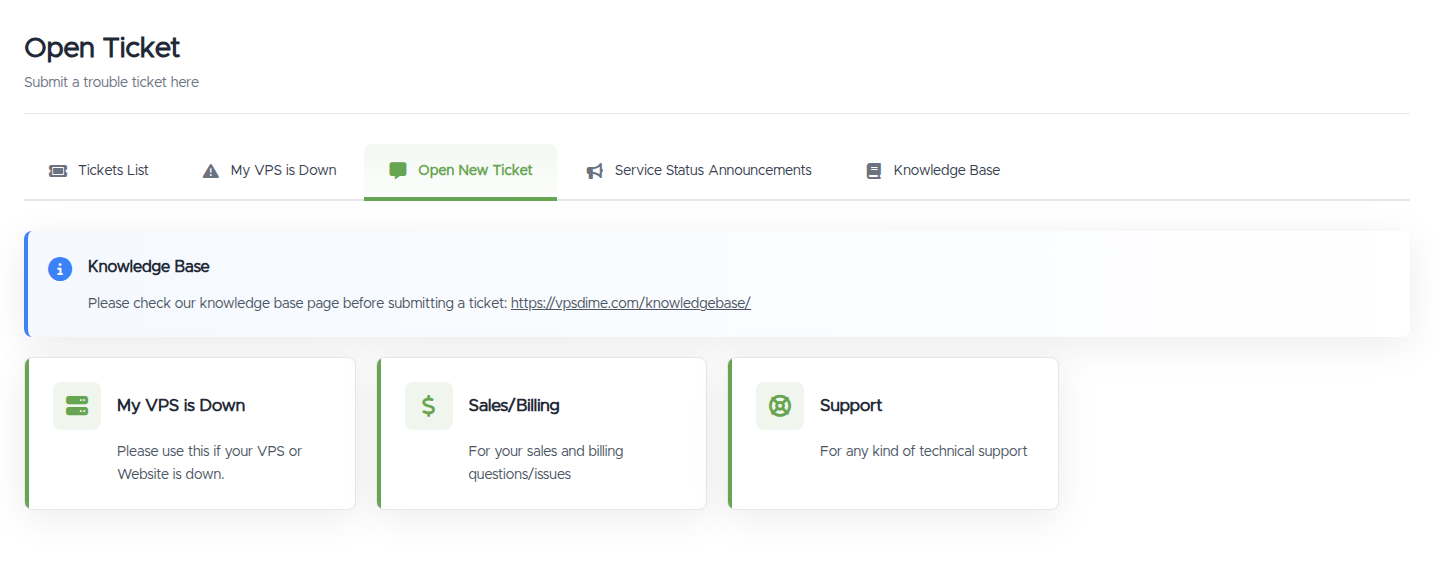
- Department. Choose Sales/Billing for orders, invoices, refunds, and account questions, and Support for anything technical (a VPS problem, networking, configuration). If you're not sure, pick Support; we'll move it if it belongs elsewhere.
- Priority (High, Medium, Low). Priority signals urgency, it isn't a queue you jump by always picking High. Use High for something genuinely urgent, like a VPS that's down or a suspected security issue. Use Medium for a normal problem that's blocking you, and Low for a question that isn't time-sensitive. Marking routine questions High doesn't get them answered sooner, and it makes real emergencies harder to spot.
Writing a ticket that gets solved on the first reply
The single biggest thing that speeds up support is a message we can act on without first asking you for more. Put this in the ticket up front:
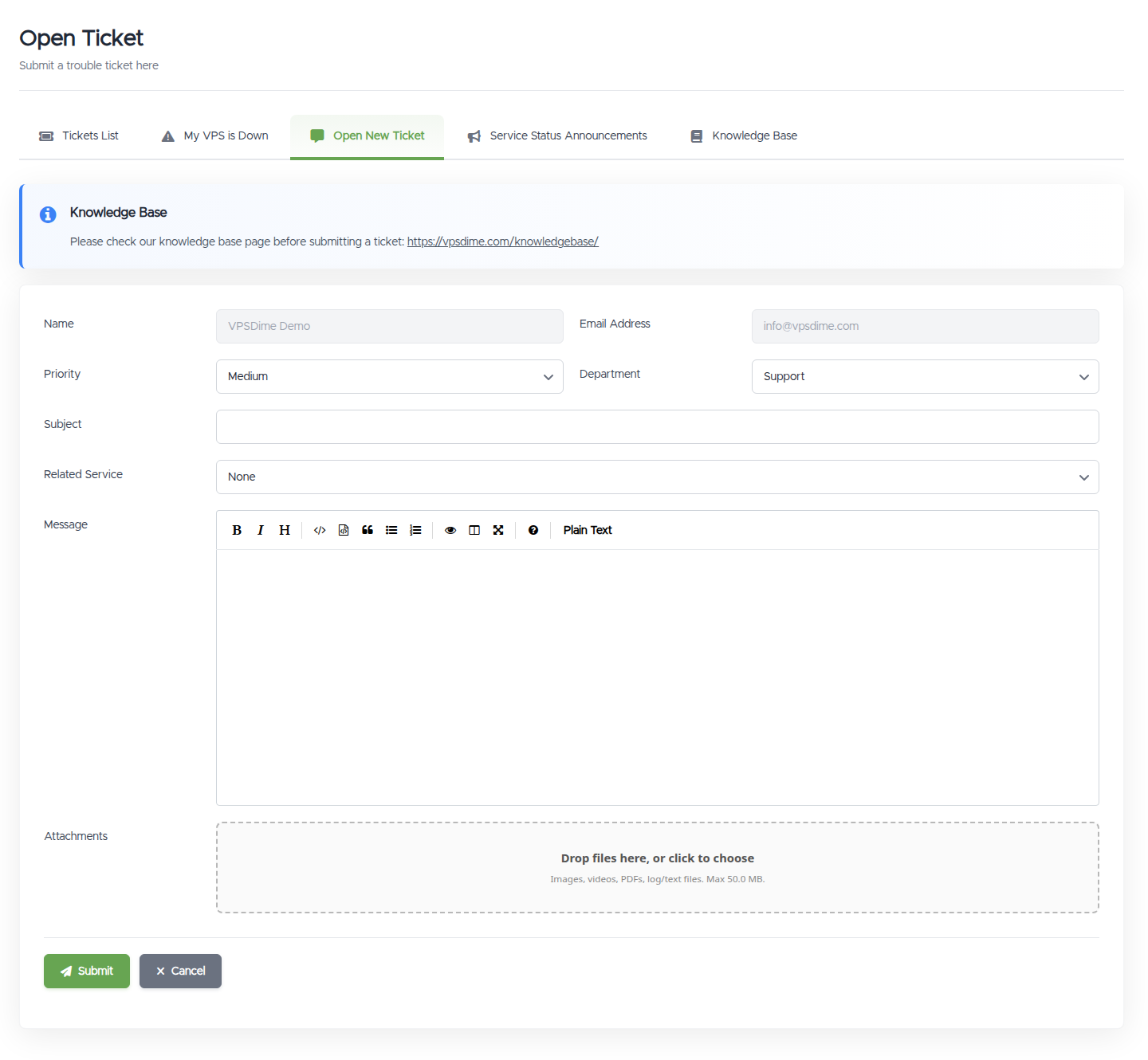
- Which VPS. Set Related Service to the VPS it's about, or include the hostname or IP in the message.
- What's wrong, exactly. What you did, what happened, and the exact error, copied and pasted rather than paraphrased. "SSH times out" and "SSH says
Permission denied (publickey)" are completely different problems with different fixes. - When it started, and whether anything changed just before, such as a reinstall, a firewall change, or an upgrade.
- What you already tried, so we don't suggest it back to you.
- Attachments if they help. The form takes images, video, PDFs, and log or text files, up to 50 MB.
- Your own words, not an AI transcript. Paste exact errors and command output freely, machine output is gold, but don't paste AI chatbot conversations or their suggested-fix essays into the ticket. Our staff are senior admins who diagnose from real symptoms, and a chatbot transcript buries them in unrelated speculation they have to read through, which slows your fix. Use the AI to try fixing first, then tell us in one line what it helped you rule out. See raising a ticket that gets solved fast.
We reply as quickly as we can, and genuinely urgent (High) tickets are looked at first. A precise, self-contained first message is what turns a problem into a one-reply fix instead of a three-message back-and-forth.
After you submit: tracking and replying
Your tickets are under Support, Tickets List (https://vpsdime.com/supporttickets), searchable by number or subject. You can reply there, or just reply to our email; both land in the same thread.
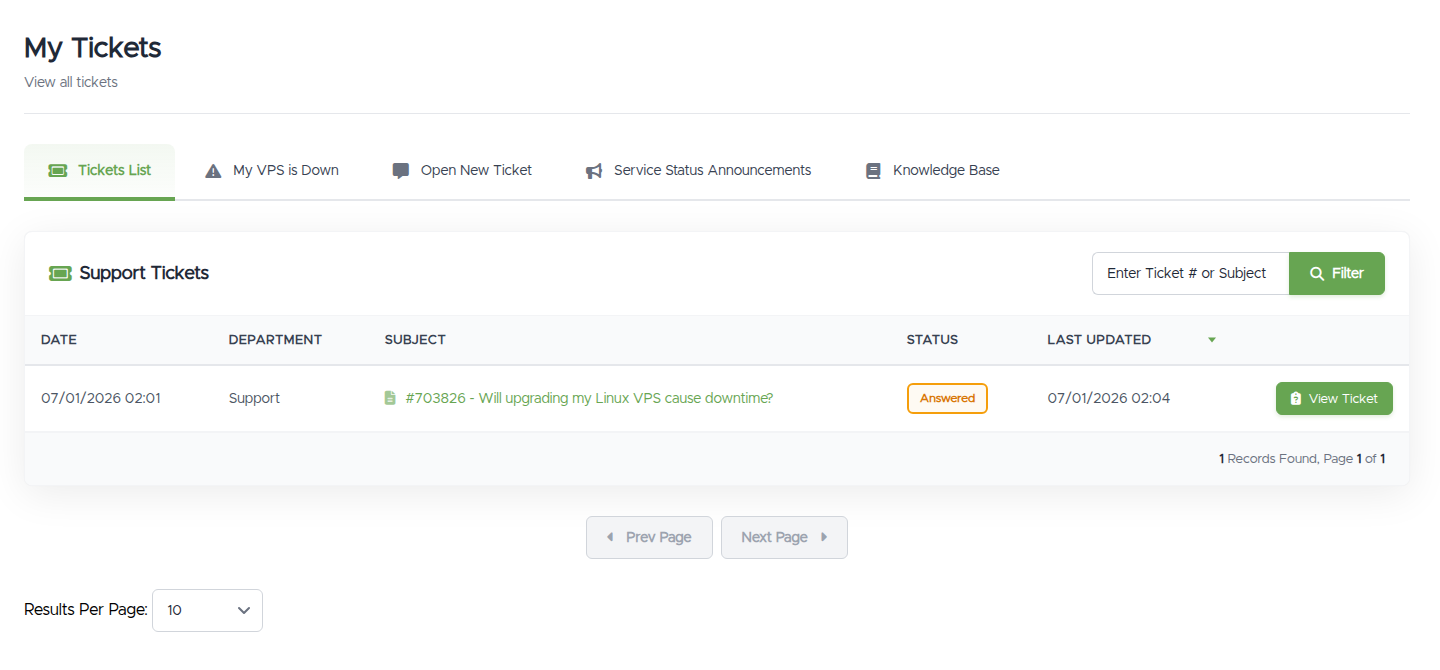

The status tells you whose turn it is:
- Open or Customer-Reply: waiting on us.
- Answered: we've replied and it's waiting on you. A ticket that sits in Answered isn't being ignored, it needs your reply to move.
- Closed: resolved. Replying reopens it.
Service status announcements
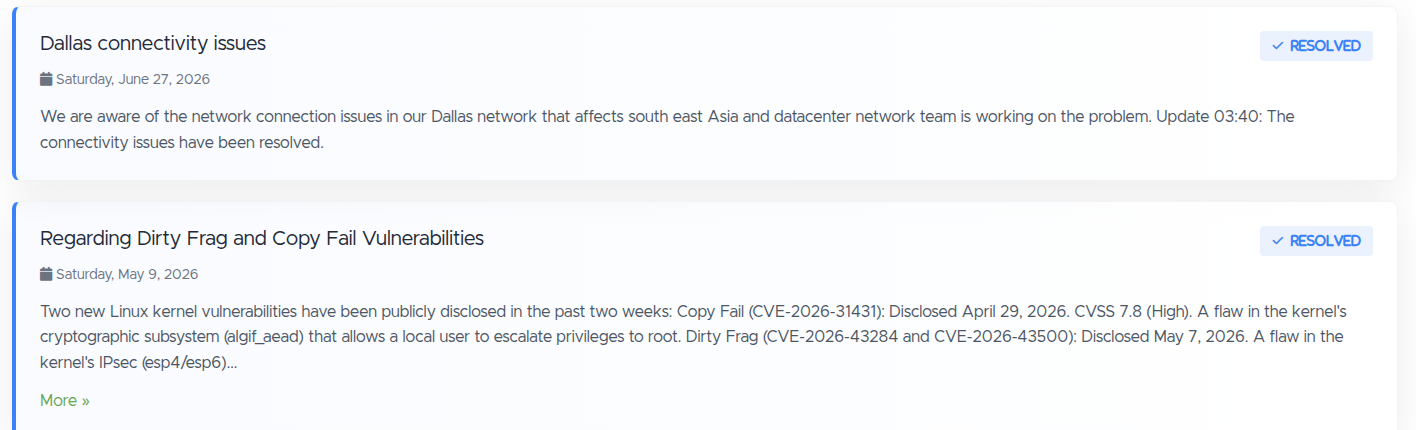
Support, Service Status Announcements (https://vpsdime.com/announcements) is our feed of incidents, maintenance, and security notices, each marked with a state such as Resolved. If several things break at once, or a whole node goes unreachable, look here first: a posted incident means we already know and are working on it, so you don't need to open a ticket. It's also available as an RSS or JSON feed if you'd rather watch it.
During an outage, the announcement is also where estimated resolution times are posted, as soon as our infrastructure team can give one, and updated as the work progresses. Worth saying plainly: opening a ticket to ask for a status update doesn't speed anything up, during an incident every available resource is already focused on restoring service, and the answer a ticket would get is the same one the announcement page already shows. Watch the page (or its feed), and save the ticket for something the incident post doesn't cover, like your VPS still being down after the incident is marked Resolved.
Related questions
- "How do I contact support?"
- "How do I open a ticket, and do I need an account?"
- "Can I open a support ticket without signing in?"
- "Why was my guest ticket redirected to sign in?"
- "Which department should I choose?"
- "What does ticket priority do, and should I mark it High?"
- "How do I get my support ticket answered quickly?"
- "How long does support take to reply?"
- "Where are my tickets, and what do the statuses mean?"
- "Can I reply to a ticket by email?"
- "How do I know if there's an outage?"
- "When will the outage be fixed, is there an ETA?"
- "Should I open a ticket during an outage?"