
How to connect to my Windows VPS using an iPhone or iPad
What this is
Connecting to your Windows VPS from an iPhone or iPad with Microsoft's free client, now called Windows App Mobile on the App Store (older screenshots say "Remote Desktop Mobile", same app). Have your VPS IP and Administrator password handy (both in your welcome email, subject "New Windows VPS - Provisioning Started").
Steps
-
Install Windows App Mobile from the App Store and open it.
-
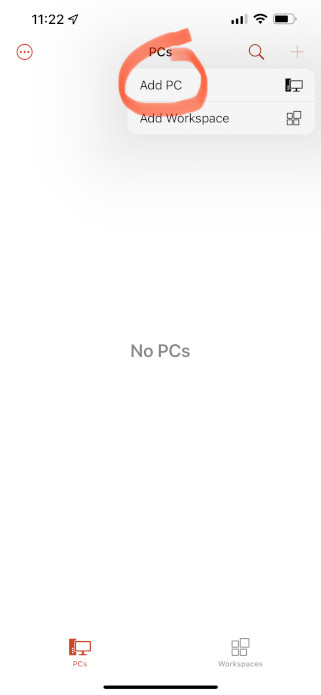
Tap the + icon in the upper right, then Add PC.
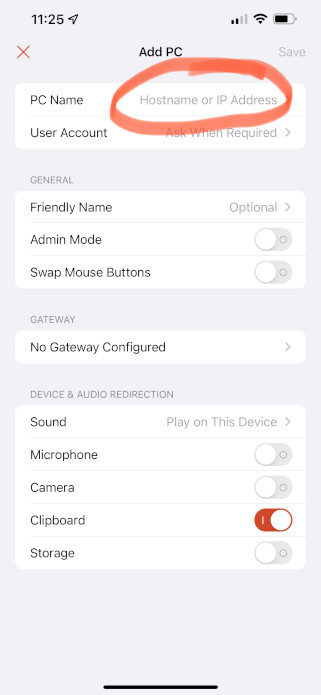
- Tap the PC Name field.
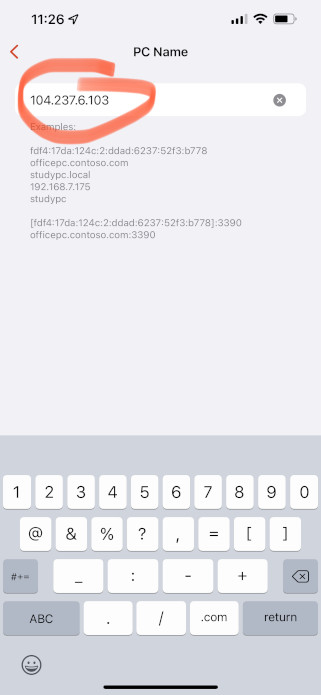
- Enter your VPS IP address, copy and paste it to avoid typos, then tap the Back arrow.
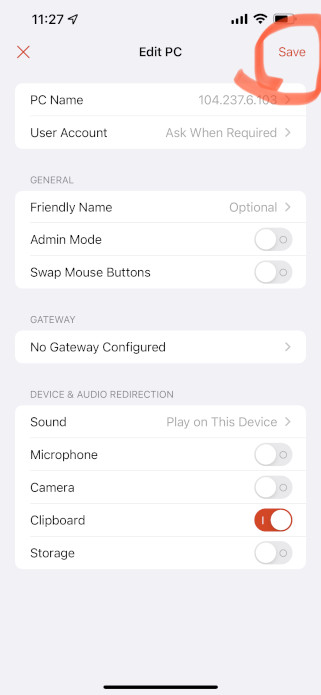
- Leave the other settings at their defaults and tap Save.
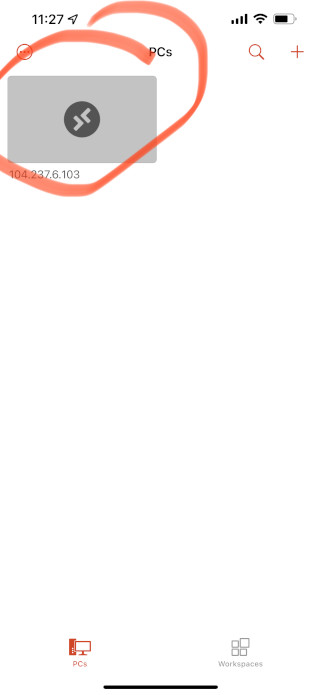
- On the PCs screen, tap the newly created entry.
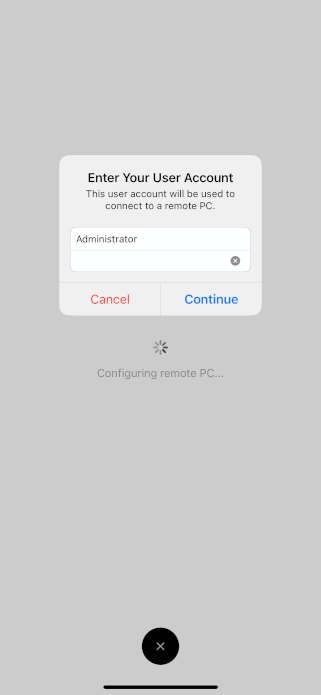
- Enter
Administratoras the Username, paste your password, and tap Continue.
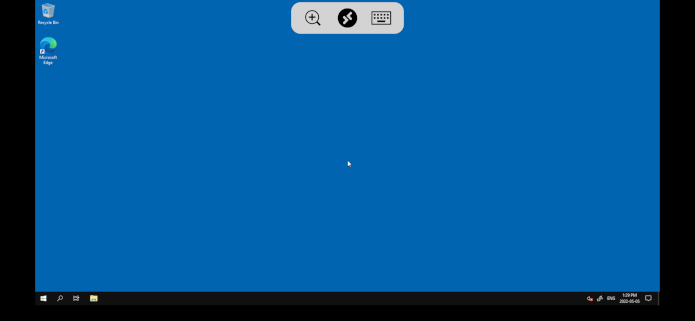
- You're in, your Windows VPS desktop on your iPhone or iPad.
Can't get in?
Run the Windows Troubleshooter (https://vpsdime.com/wintroubleshooter), it checks power, RDP, and your password, and can reset the password on the spot.
Still need help?
You can open a support ticket. So we can help on the first reply, it's worth mentioning:
- the VPS hostname or IP,
- the exact message the iOS client shows,
- what the Windows Troubleshooter reported.
Related questions
- "How do I RDP into my Windows VPS from my iPhone?"
- "Is there a remote desktop app for iPad?"
- "What username do I use on the mobile RDP app?"