
Pay for your service in advance
What this is
You can pay now to move a service's renewal date 1 to 24 months forward, without changing its price or billing cycle. You get a one-time invoice for exactly the time you add; once it's paid, renewal invoices simply start arriving that much later. Find it at Billing, Pay In Advance (https://vpsdime.com/payinadvance).
This is useful when you want to spend account credit ahead of time, cover a long absence, or lock in service time before a card expires. If what you actually want is to be billed less often (for example monthly to annual), use Change your billing cycle instead; it changes the recurring price schedule rather than prepaying at your current one.
Steps
- Go to Billing, Pay In Advance.
- Find the service in Your Services and click Pay In Advance.
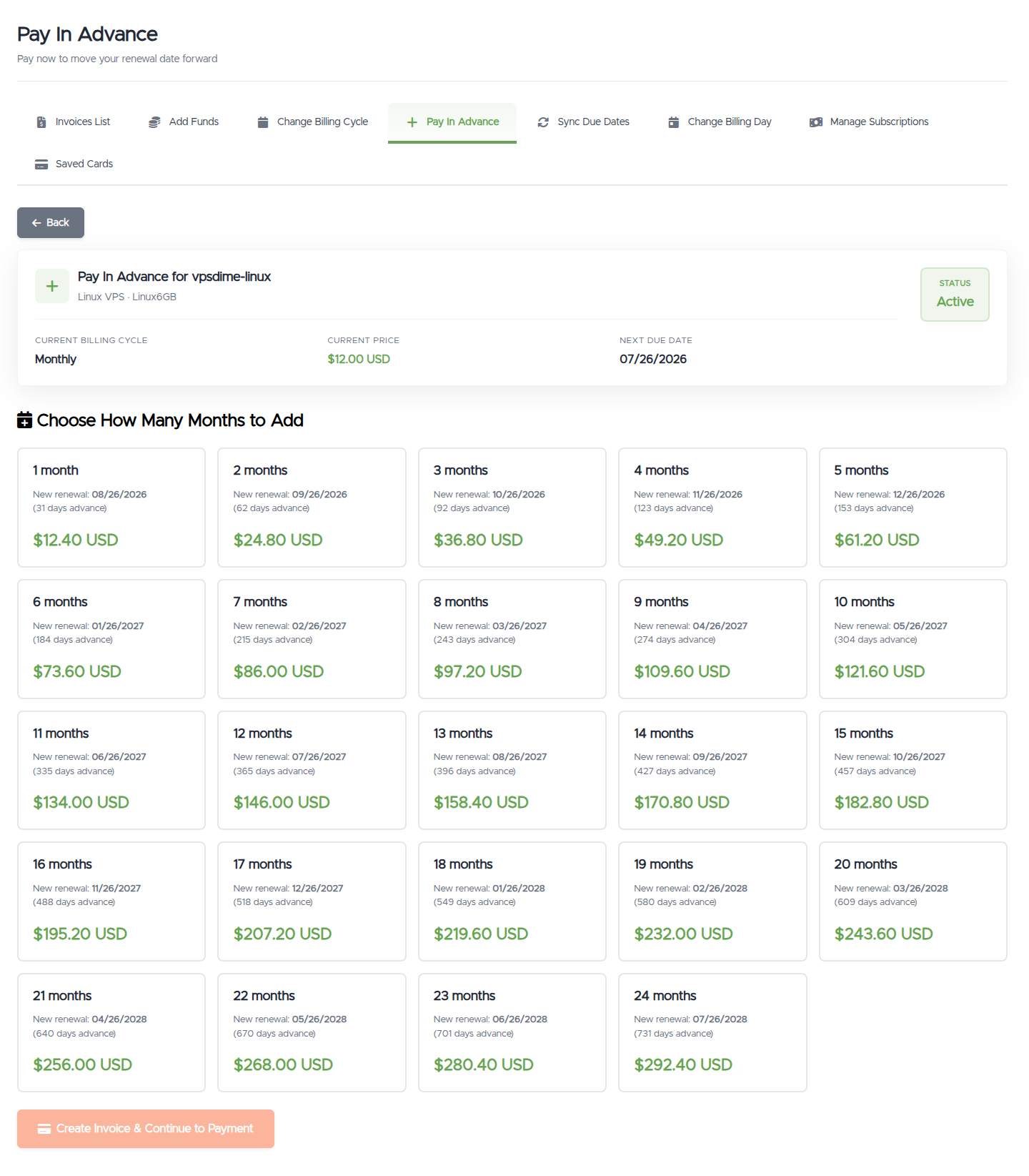
- Pick how many months to add. Each option shows the exact price and your new renewal date before you commit.
- Click Create Invoice & Continue to Payment and pay the invoice with any payment method, including account credit.
The renewal date moves the moment the invoice is paid. Nothing changes until then.
What you'll see
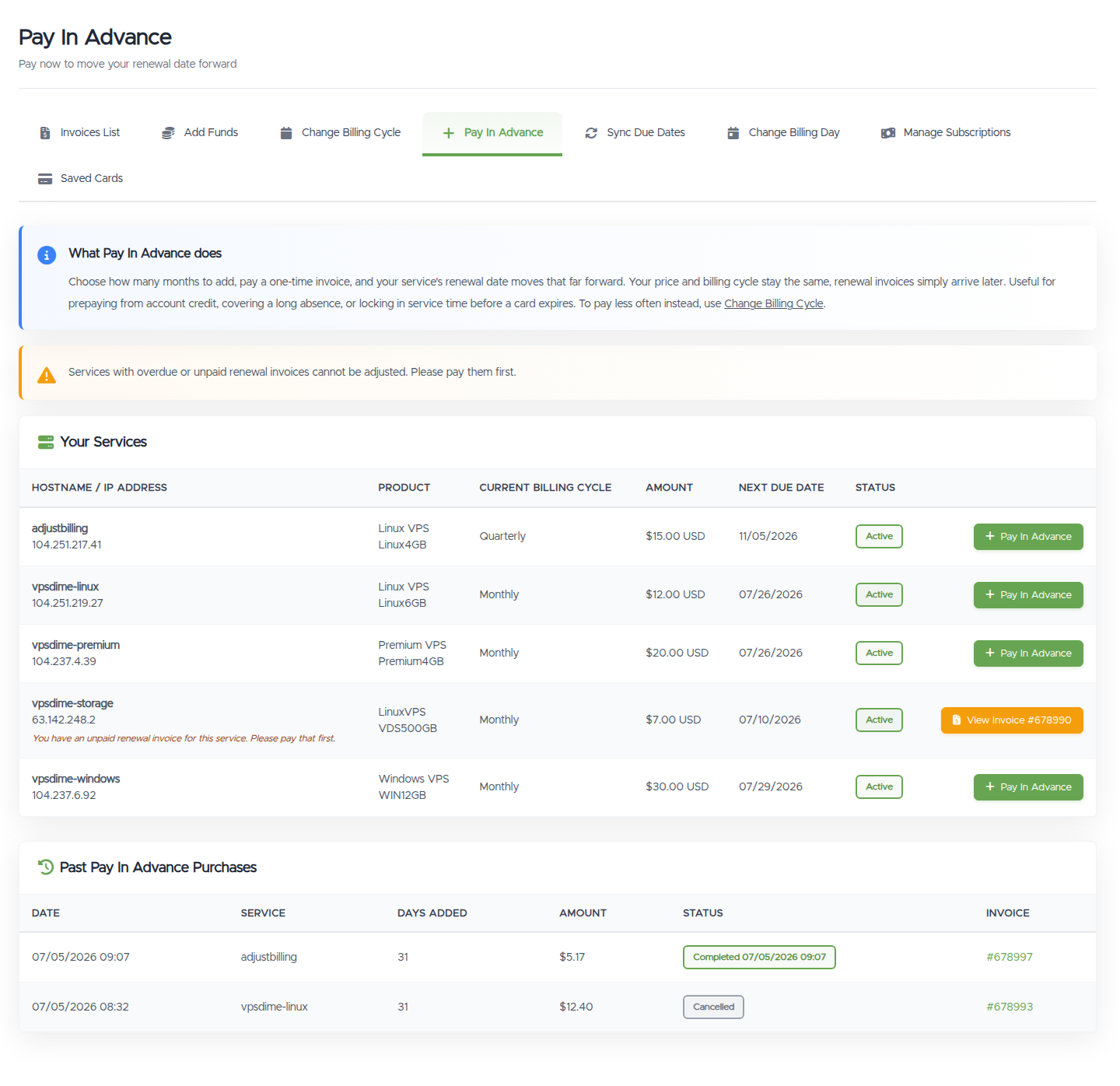
- A Your Services table with each service's current cycle, price, and next due date, and a Pay In Advance button per service. Services that can't be adjusted right now (for example, with an unpaid renewal invoice) show the reason and a View Invoice button instead.
- After choosing a service, a grid of 1 to 24 month options, each with the new renewal date and its exact price.
Things worth knowing
- The price is prorated from your plan price. Each month added costs your plan's monthly-equivalent price, calculated per day. What's shown on the option card is exactly what's invoiced.
- The invoice is not charged automatically. Saved cards and PayPal subscriptions never auto-pay a prepayment invoice; pay it from the invoice page yourself (account credit works too).
- The offer expires if unpaid. An unpaid prepayment invoice cancels itself automatically after a few days (shown next to the pending entry). If it expires or you cancel it, nothing changes and normal renewal billing continues. Nothing is ever charged without the invoice being paid.
- One pending adjustment per service. A pending prepayment blocks creating a due-date sync or billing-day change for the same service until you pay or cancel it. Any of the three pages shows your pending adjustments with Pay and Cancel buttons.
- Changed your mind before paying? Cancel the pending entry, or just submit a different number of months; a new submission replaces the pending one. Applied account credit is returned on cancel.
Troubleshooting
- The button says View Invoice instead of Pay In Advance. The service has an unpaid or overdue renewal invoice. Pay that first, then come back.
- My service isn't listed. Only Active, Pending, or Suspended services with a recurring billing cycle can be prepaid. Free and one-time services have no renewal date to move.
- "Your renewal is due very soon." When the renewal is a day away or less, pay the upcoming renewal invoice instead; you can prepay right after.
- I paid but want to undo it. Once paid and applied, the date change is permanent. Open a ticket and we'll take a look.
Still need help?
You can open a support ticket. So we can help on the first reply, it's worth mentioning:
- the service (hostname or IP),
- how far ahead you want to pay,
- the invoice number if one was created.
Related questions
- "How do I manually renew my VPS?"
- "Can I pay for my VPS a year in advance?"
- "How do I prepay my server?"
- "Can I pay early without changing my billing cycle?"
- "Will my saved card be charged if I create a prepayment invoice?"