
Reinstalling your OS
What this is for
Reinstall OS (in Manage VPS, https://vpsdime.com/myservices) wipes your VPS and lays down a clean operating system. Use it to start fresh, switch to a different distribution, or recover from a system that's too broken to fix. It usually takes about 3 to 5 minutes, and you get an email when it's done.
Read this first: it erases everything
Reinstalling deletes all data on the VPS, files, databases, configuration, everything. There's no undo. Before you reinstall:
- Back up anything you need. If you have Nightly Backups, make sure a recent backup exists (or download what matters). Otherwise copy your data off first.
- If the goal is to fix a broken system rather than start over, don't reinstall, use the Console or, on Premium VPS, Boot from ISO to repair it and keep your data.
Choosing what to install
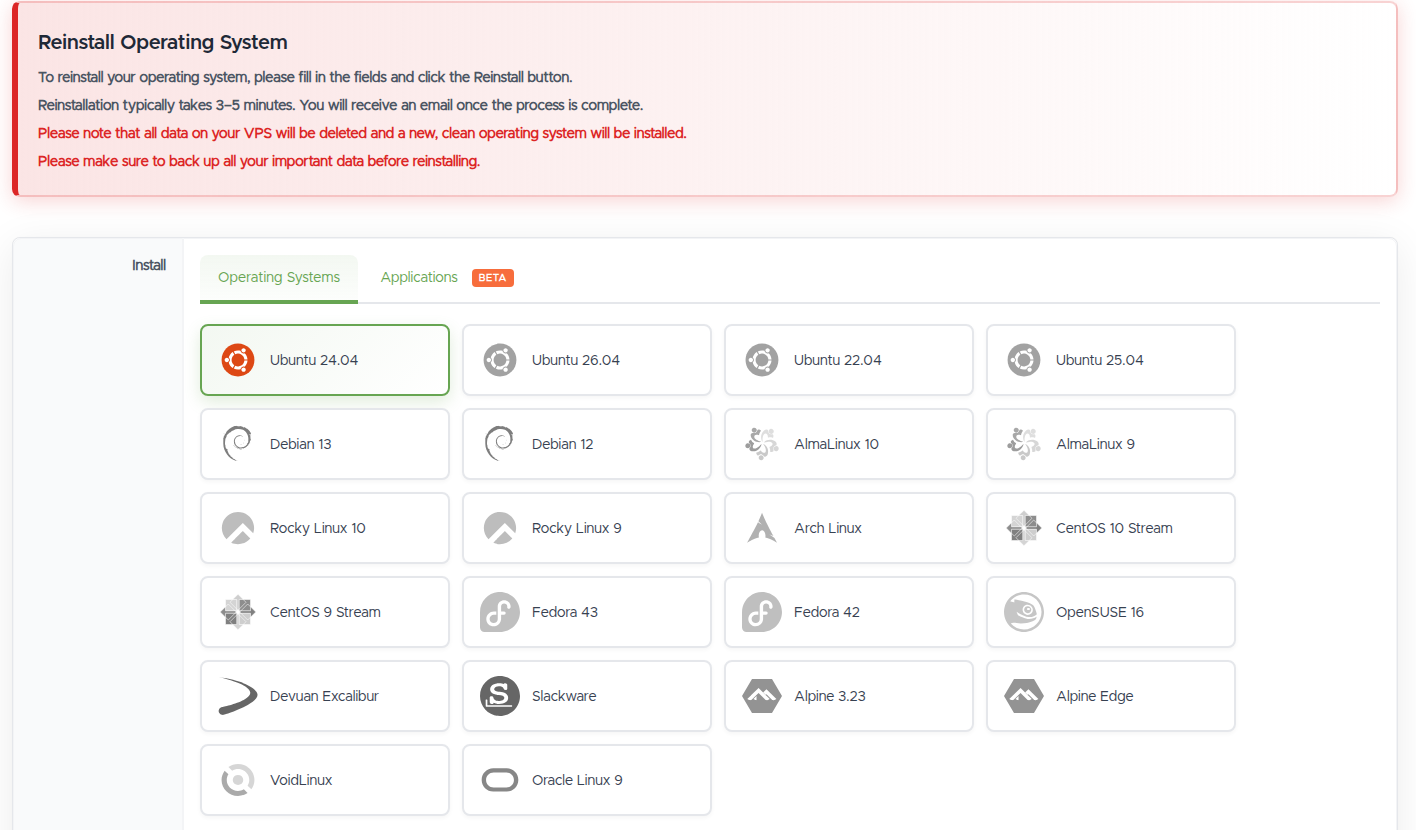
- Operating System. Pick a distribution from the list (Ubuntu, Debian, AlmaLinux, Rocky, Arch, CentOS, Fedora, openSUSE, Alpine, and more). Choose a version you'll get updates for, current LTS releases are the safe default for most people.
- Applications (beta). Instead of a bare OS, you can pick a one-click application to have a common stack installed and pre-configured for you. Handy if you just want the app running without setting it up by hand.
Set up access before you reinstall
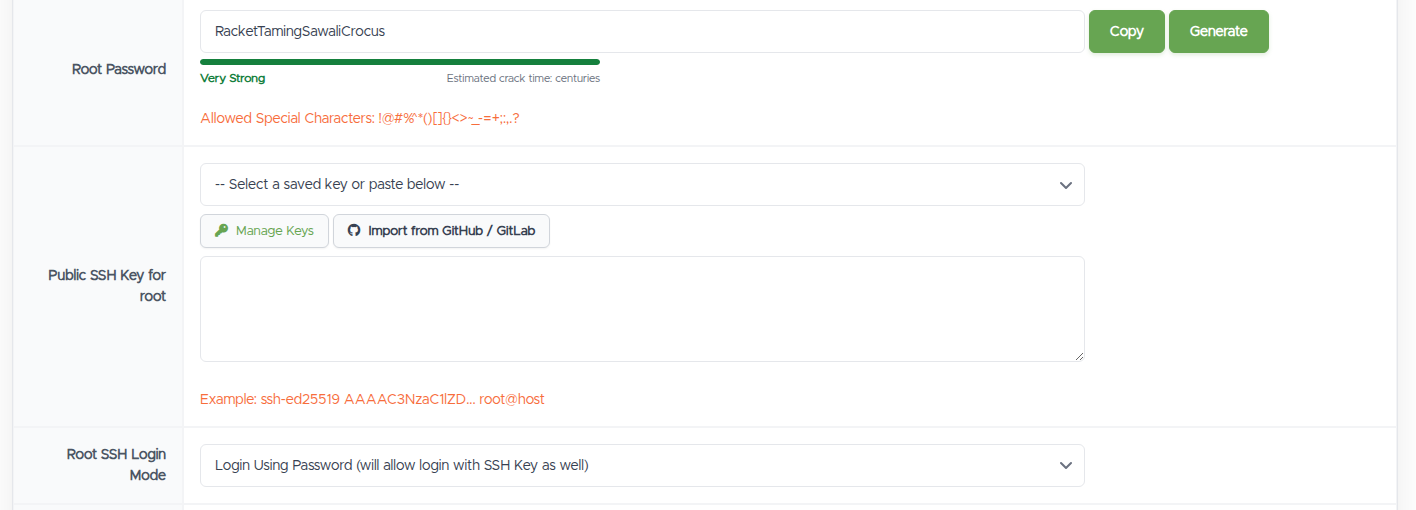
The form sets up your logins up front so you can get straight in when the reinstall finishes. It configures two accounts: root (always), and optionally a regular user you create at the same time. Each has the same three fields, a password, an SSH key, and a login mode, set independently.
Recommended: create a user, don't rely on root
For everyday use, log in as a regular user and run sudo for admin tasks instead of logging in directly as root. Root can change anything on the system, so a slip or a compromised root login does far more damage. A safer, common setup:
- Enter a Username to have a sudo-capable user created, give it your SSH key, and use it to log in.
- Lock down root: set its login mode to Login with SSH Key Only (or Disable Login) so root can't be brute-forced over SSH.
You can skip the user and just use root if you prefer, both are fully supported. Using an SSH key rather than a password is the recommended way in either way.
Root account
- Root password. Generated for you with a strength meter, keep it or set your own.
- Public SSH Key for root. Pick a saved key, paste one, or import from GitHub/GitLab.
- Root SSH Login Mode, how root may sign in over SSH:
- Login Using Password (will allow login with SSH Key as well), accepts either the password or a key.
- Login with SSH Key Only, turns off password login for root. More secure, but only choose it if you've actually set a key above, or you'll be locked out of root.
- Disable Login, switches off SSH login for root entirely (no password, no key). Only choose this if you've created a user to log in with, otherwise you'll have no way in over SSH.
User account (optional)
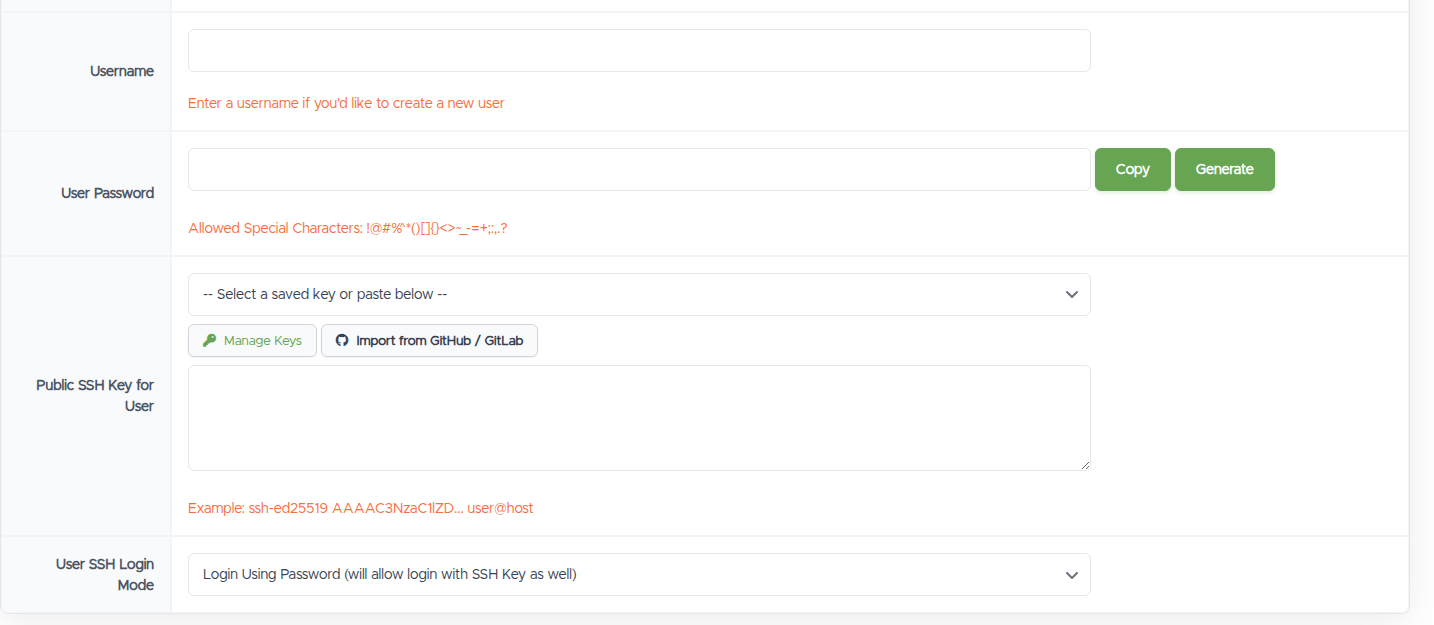
Leave Username blank to skip this. Fill it in to have a regular user created during the reinstall, with the same options as root, applied to that user:
- Username. The login name for the new user. Leaving it empty means no user is created.
- User Password. Generated or your own.
- Public SSH Key for User. A saved, pasted, or imported key for this user.
- User SSH Login Mode. The same three choices as root (password and key, key only, or disabled), applied to the user account.
On a Windows VPS, reinstalling reinstalls Windows and you connect over RDP with the Administrator password.
Do it
Once you've chosen the OS (or app) and set your access, start the reinstall and wait for the completion email. Then connect with your key or password.
Good to know, and troubleshooting
- I can't log in after reinstalling. Check you're using the right username,
root, or the user you created, and the key or password you set for that account. If you set root to key-only or Disable Login, log in as your user instead (then usesudo). If a key didn't take effect or you're locked out of every account, reset the password from the Console / management page. - My IP got blocked right after reinstalling. Repeated wrong-password attempts can trip the SSH firewall, whitelist your IP there.
- SSH warns "REMOTE HOST IDENTIFICATION HAS CHANGED". Normal after a reinstall, the fresh OS has a new host key. The one-line fix.
- The reinstall seems stuck. It's usually done within a few minutes; check the Tasks log and your email. If it's much longer, open a ticket.
Still need help?
You can open a support ticket. So we can help on the first reply, it's worth mentioning:
- the VPS hostname or IP,
- the OS or app you reinstalled,
- what happens when you try to connect.
Related questions
- "How do I reinstall my VPS?"
- "Will reinstalling delete my data?"
- "How do I switch my VPS to a different Linux distro?"
- "How do I install an app when I reinstall?"
- "How do I set up my SSH key during reinstall?"
- "I reinstalled and now I can't log in, what do I do?"