
SSH Keys
What this is
The SSH Keys page stores your SSH public keys on your account, so you can pick a key from a dropdown when you deploy a new VPS or reinstall one, instead of pasting it each time. Open it from SSH Keys in the client area sidebar (https://vpsdime.com/sshkeys).
- You always add the public key (the
.pubfile). Never paste your private key anywhere. - Saved keys are account-wide and work across your servers, on Linux VPS and Premium VPS. Windows VPS doesn't use this.
If you don't have a key yet, create one on your own computer, for example:
ssh-keygen -t ed25519That makes a private key and a public key (~/.ssh/id_ed25519.pub). You add the public one here.
Add a key
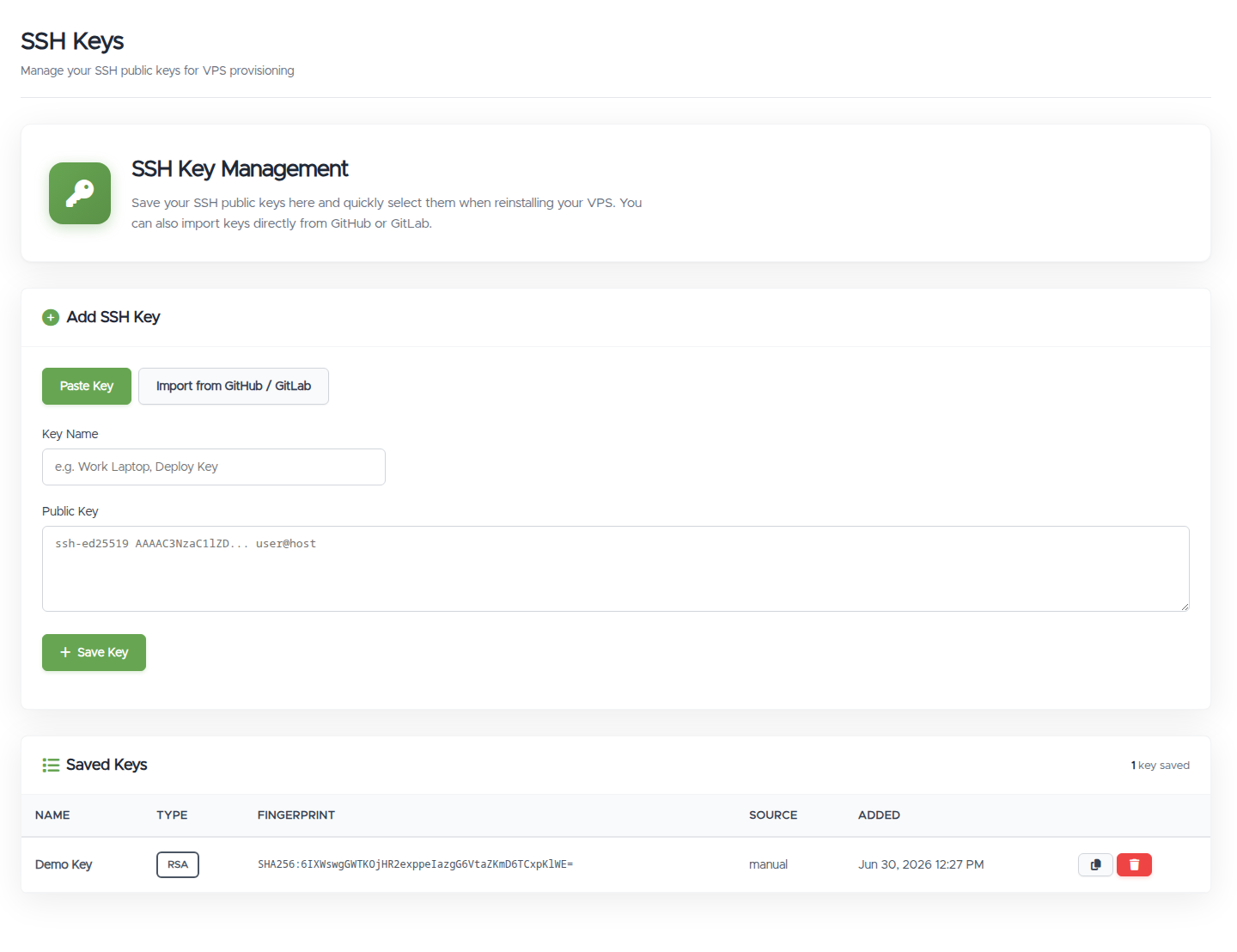
On the SSH Keys page, under Add SSH Key, there are two tabs.
Paste a key
- Open the Paste Key tab.
- Key Name: a label so you recognise it later, for example "Work Laptop".
- Public Key: paste the full contents of your public key file. It starts with
ssh-ed25519,ssh-rsa, orecdsa-sha2-…and is a single line. - Click Save Key.
Import from GitHub or GitLab
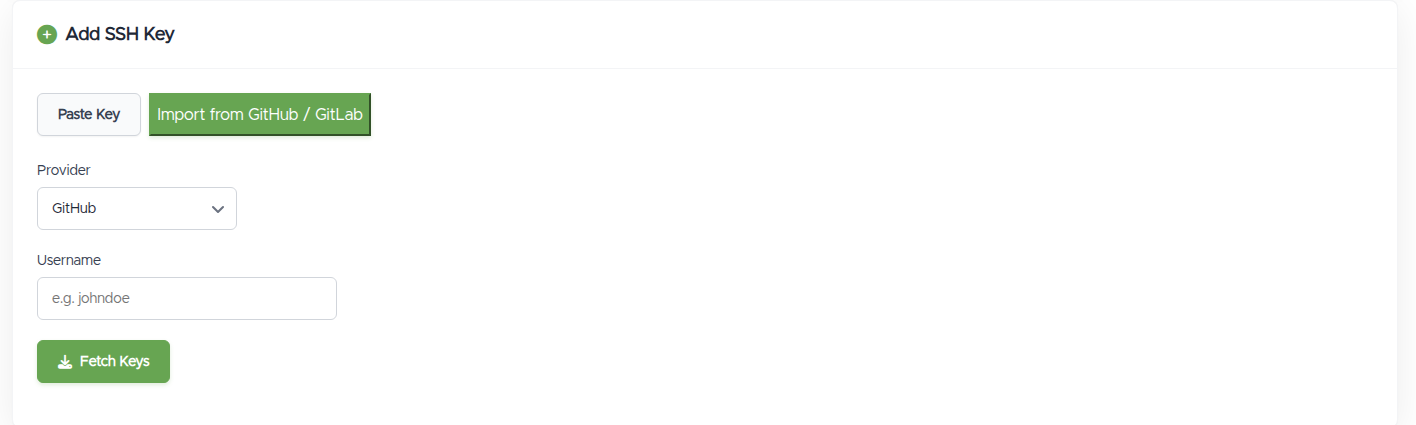
- Open the Import from GitHub / GitLab tab.
- Choose the Provider (GitHub or GitLab) and enter your Username, then click Fetch Keys. This reads the public keys published on your GitHub or GitLab profile.
- Select the keys you want and import them. Keys already on your account are flagged so you don't add duplicates.
Your saved keys
The Saved Keys list shows each key's Name, Type (RSA, ED25519, ECDSA-256/384/521, or DSA), Fingerprint (a SHA256 fingerprint), Source (manual, github, or gitlab), and when it was added. You can copy or delete a key from here. Adding the same key twice is blocked (matched by fingerprint).
Use a key on a VPS
You choose a saved key when you create a server or reinstall its OS. In both places there's a "-- Select a saved key or paste below --" dropdown, plus Manage Keys and Import from GitHub / GitLab buttons and a paste box if you'd rather not use a saved key.
When deploying a new VPS
On the configure page (Deploy, then a plan), open Optional Configuration. Pick your key under Root Public SSH Key (and a user key if you're creating a user). The key is added to the new server during setup.
When reinstalling
In Manage VPS, open the Reinstall OS tab. Under Public SSH Key for root (and for User), select a saved key, or paste one. If you paste a new key, a Save this key link lets you store it to your account at the same time.
Login mode
Both flows let you set an SSH Login Mode for root and for the user:
- Login Using Password also allows logging in with your SSH key.
- Login with SSH Key Only turns off password login, so you must use your key.
- Disable Login turns off login for that account.
If you choose Login with SSH Key Only, make sure you've actually set a valid key for that account first, otherwise you can lock yourself out.
Connecting
Once the VPS is built with your key, connect using the matching private key from your computer:
ssh root@your-server-ipTroubleshooting
- "Invalid SSH public key format." The key must start with
ssh-rsa,ssh-ed25519,ecdsa-sha2, and so on. Paste the public key (the.pubfile), as a single line, not your private key. - "This key is already saved." That exact key (by fingerprint) is already on your account, possibly under a different name.
- Import found no keys. Check the GitHub or GitLab username, and that the account has public keys listed on its profile.
- I can't log in with my key. Confirm you selected the right key when deploying or reinstalling, that you're connecting with the matching private key, and that you didn't pick a Login Mode that disables the login you're trying to use. If you chose key-only and no key took effect, open a ticket.
- I have a Windows VPS. SSH keys aren't used for Windows VPS.
Still need help?
You can open a support ticket. So we can help on the first reply, it's worth mentioning:
- the VPS hostname or IP (if it's about a specific server),
- whether it's about saving a key, deploying, reinstalling, or logging in,
- the key type, and any error you saw.
Never share your private key or your password in a ticket. We only ever need your public key.
Related questions
- "How do I add an SSH key to my account?"
- "How do I deploy or reinstall a VPS with my SSH key?"
- "Can I import my keys from GitHub or GitLab?"
- "What SSH key types are supported?"
- "What's the difference between the SSH login modes?"
- "How do I log in with SSH key only?"
- "Why won't my SSH key let me log in?"
- "Do Windows VPS support SSH keys?"