
Contacts & sub-accounts
What this is
A way to bring other people (a colleague, an accountant, a developer) onto your account. There are two levels, and they're set in the same place, at My Account → Contacts / Sub-Accounts: Find it at https://vpsdime.com/contacts.
- Contact: a person on your account who receives the email types you choose (billing, support, etc.). A contact has no login.
- Sub-account: a contact you've also given client-area access, with their own email and password, limited to the permissions you select.
You can have as many as you need, and you choose exactly what each one can see or do.
Add a contact (and optionally make it a sub-account)
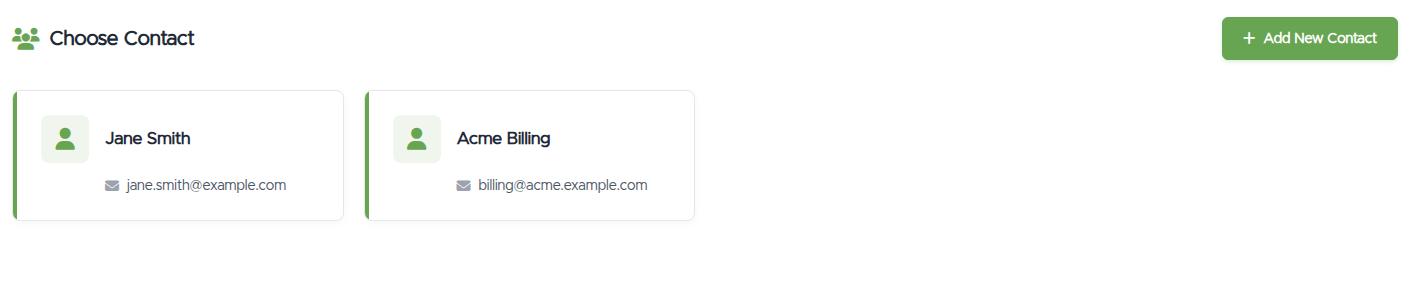
- Go to My Account → Contacts / Sub-Accounts and click Add New Contact.
- Fill in their name and details.
- Choose their Email Preferences (which emails they should receive, see below).
- To let them sign in too, tick Activate Sub-Account: "Tick to configure as a sub-account with client area access." That reveals a password field and the Sub-Account Permissions list. Set a password and pick what they may access.
- Click Add Contact.
To edit or delete one later, return to the same page, pick the contact from the list, and change or remove it.
Email preferences
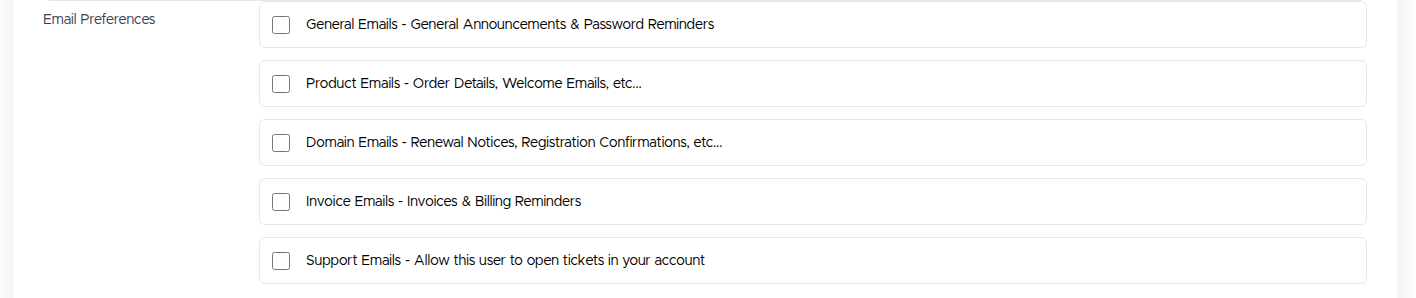
For any contact, tick the categories they should receive:
- General Emails: general announcements & password reminders
- Product Emails: order details, welcome emails, etc.
- Domain Emails: renewal notices, registration confirmations, etc.
- Invoice Emails: invoices & billing reminders
- Support Emails: lets this person open tickets on your account
Sub-account permissions
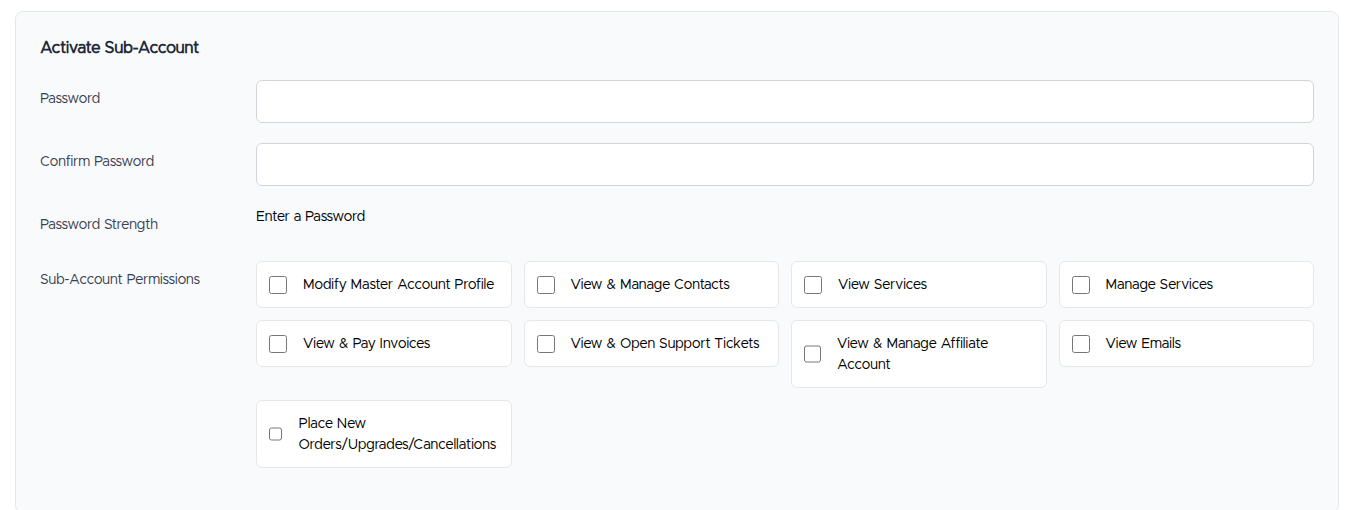
When Activate Sub-Account is ticked, choose what they can do once signed in:
- Modify Master Account Profile: edit the main account's details
- View & Manage Contacts: add/edit other contacts and sub-accounts
- View Services: see your services
- Manage Services: change services (upgrades, cancellations, etc.)
- View & Pay Invoices: see and pay invoices
- View & Open Support Tickets: see and open tickets
- View & Manage Affiliate Account: access the affiliate area
- View Emails: see the account's email history
- Place New Orders/Upgrades/Cancellations: order new services
A sub-account only sees the areas you've ticked; anything else shows a "no permission" message.
How a sub-account signs in
They go to the normal sign-in page and use their own email address and the password you set, not yours. Their view is limited to the permissions you granted.
Billing contact
If you'd like a specific contact (say, your accounts team) to receive invoices, set them as your Billing Contact on Account Details.
One consequence to know: with a billing contact selected, invoices are issued with the contact's details, their name, company, and address appear on the invoice instead of your main account's. Keep the contact's details current, since that's what your accounting records will carry, and remember that editing your main profile won't change what invoices show while a billing contact is set.
Troubleshooting
- "A user already exists with that email address" when adding a sub-account. That email is already used on an account somewhere. Sub-account logins need their own unique email, so use a different one.
- My sub-account can't see or do something. They're missing that permission. Edit the contact and tick the relevant box (for example Manage Services or View & Pay Invoices).
- My sub-account forgot their password. Edit the contact and set a new password in the sub-account section, then share it with them.
- I don't want a person to log in anymore. Either untick Activate Sub-Account (keeps them as an email contact) or delete the contact entirely.
Still need help?
You can open a support ticket. So we can help on the first reply, it's worth mentioning:
- the email address on your main account,
- the contact/sub-account email involved,
- what access or email issue you're seeing (a screenshot helps).
Related questions
- "How do I add someone to my account?"
- "What's the difference between a contact and a sub-account?"
- "How do I give a colleague access without sharing my password?"
- "How do I control which emails a contact gets?"
- "How do I remove a sub-account?"
- "Why do my invoices show my billing contact's details instead of mine?"