
How to connect to my Windows VPS from another Windows computer
What this is
Connecting to your Windows VPS from a Windows PC with the built-in Remote Desktop Connection app. Every edition of Windows includes it, you don't need Windows Pro and nothing extra to install. Have your VPS IP and Administrator password handy (both are in your welcome email, subject "New Windows VPS - Provisioning Started").
Two things worth knowing before you start:
- The app's name is localized: on a non-English Windows, search for your language's equivalent of "Remote Desktop Connection".
- You do not want "RemoteApp", that's a different thing. Make sure it's Remote Desktop Connection.
Steps
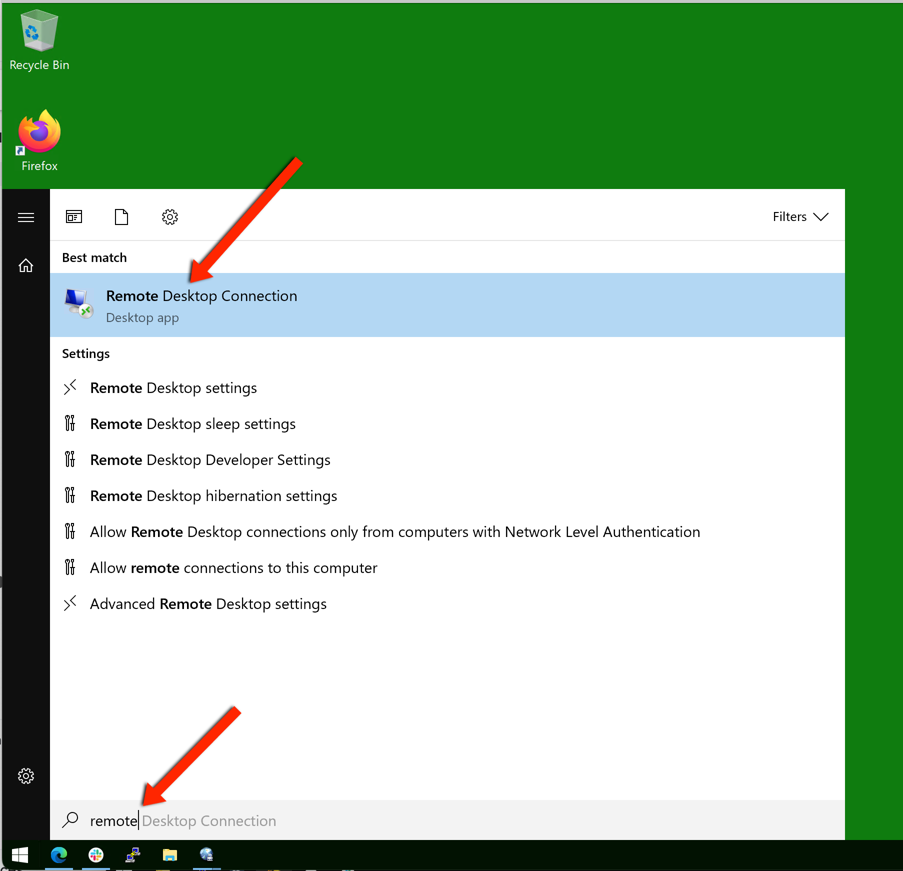
- Click Start, type "remote", and open Remote Desktop Connection.
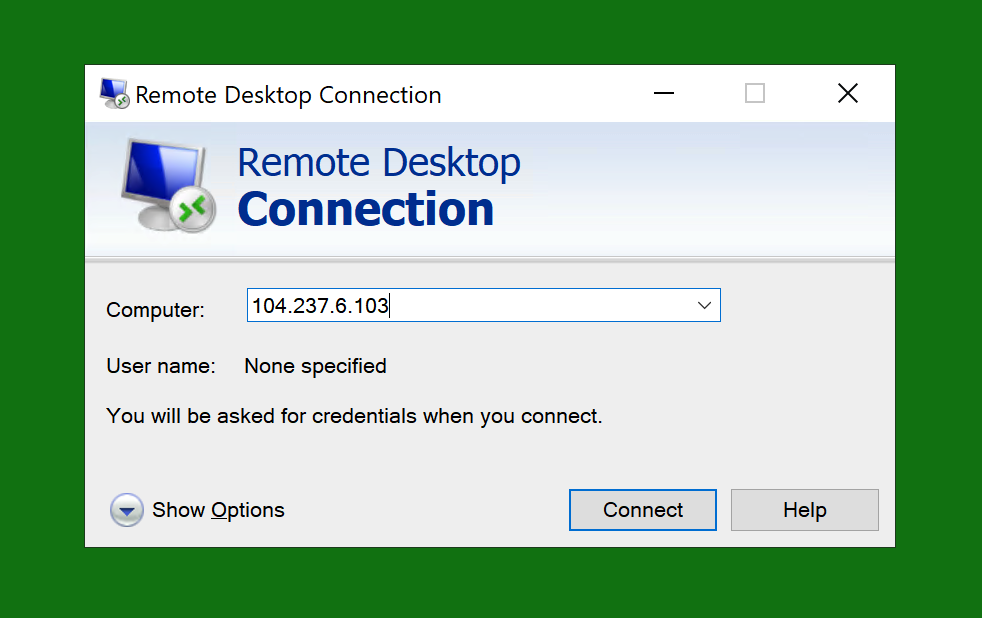
- In the Computer field, copy and paste your VPS IP address, then click Connect.
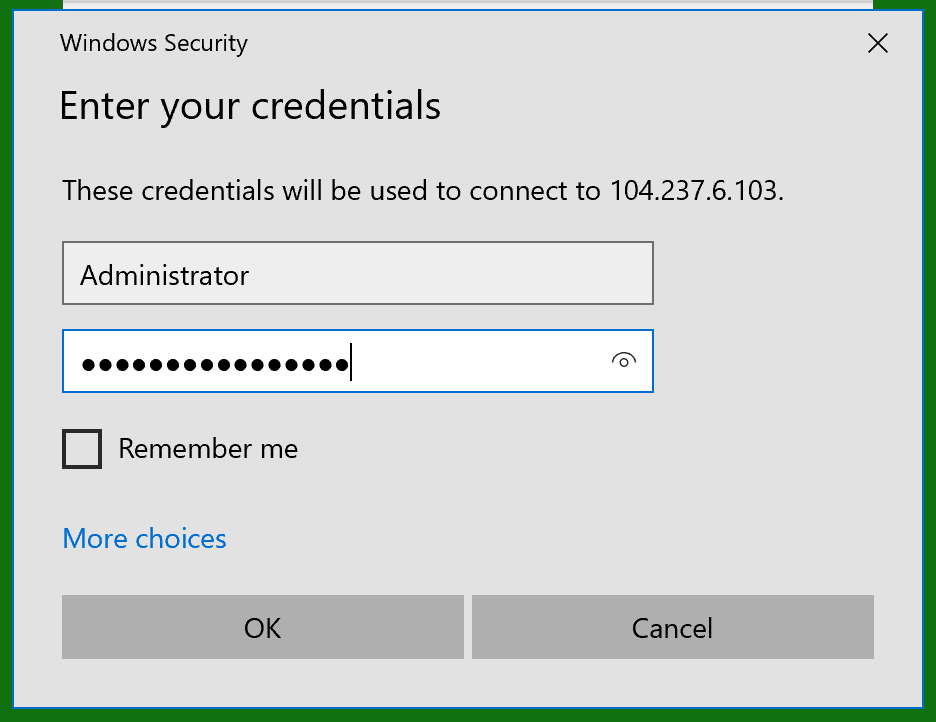
- Enter your credentials: the User name is
Administrator, and we strongly recommend copy and pasting the password to avoid typos. Click OK.
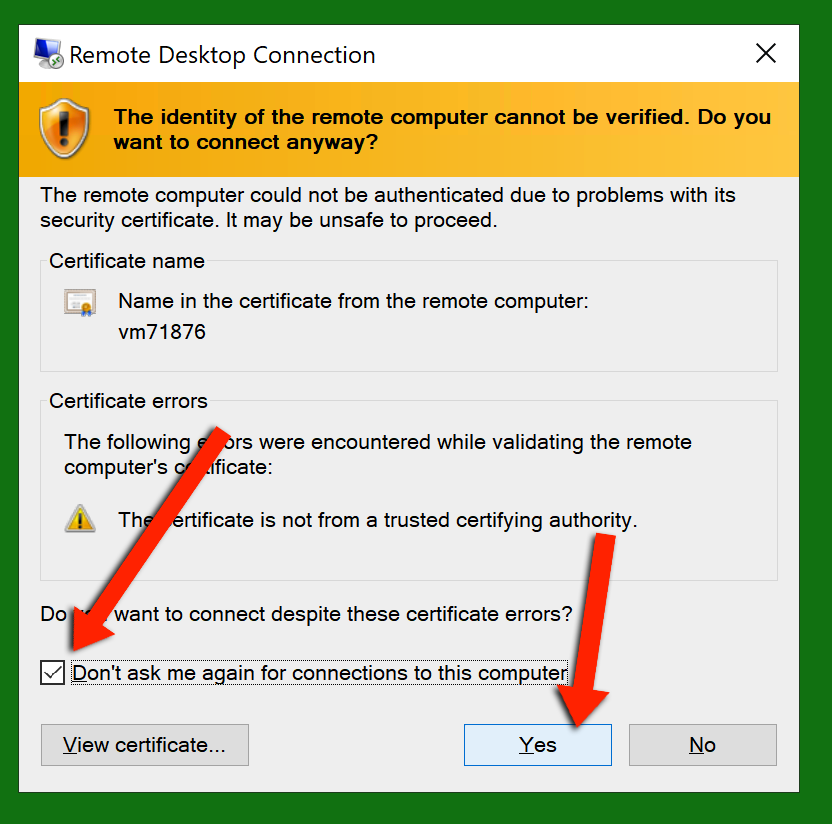
- A certificate warning pops up, that's normal for a fresh server. Tick "Don't ask me again for connections to this computer" and click Yes.
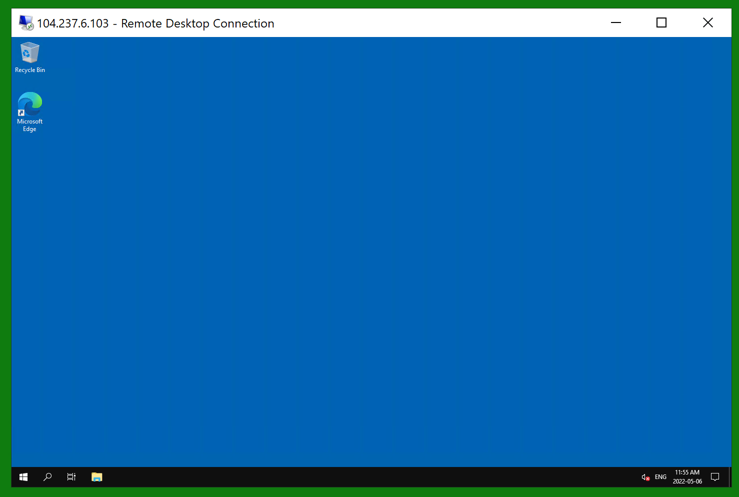
- You're in, the Windows desktop of your VPS.
Can't get in?
Run the Windows Troubleshooter (https://vpsdime.com/wintroubleshooter), it checks power, RDP, and your password, and can reset the password on the spot.
Still need help?
You can open a support ticket. So we can help on the first reply, it's worth mentioning:
- the VPS hostname or IP,
- the exact message Remote Desktop Connection shows,
- what the Windows Troubleshooter reported.
Related questions
- "How do I RDP into my Windows VPS from my PC?"
- "Do I need Windows Pro to use Remote Desktop Connection?"
- "What do I do with the RDP certificate warning?"
- "I can't find Remote Desktop Connection on my computer."