
How to change the time zone in Windows Server 2019
What this is
Due to how Windows Server 2019 is set up, changing the time zone through the regular Settings interface fails. The fix is to use the classic Date and Time applet, run as Administrator.
Steps
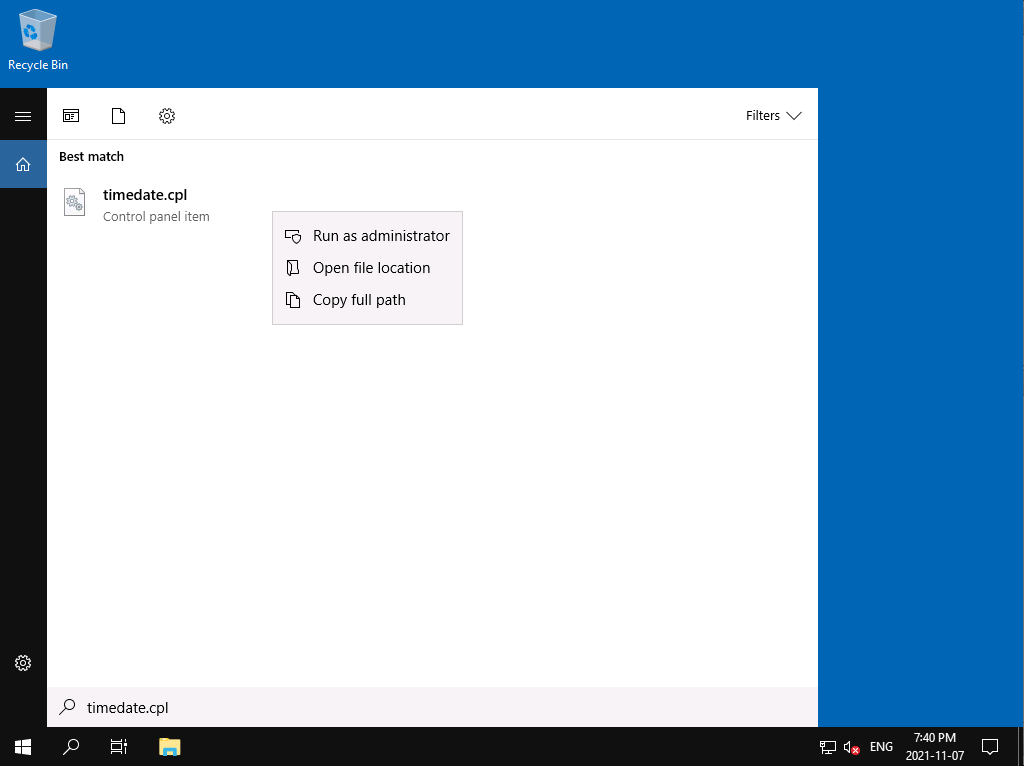
- Click the Search icon and search for
timedate.cpl. - Right-click the result and choose Run as administrator, and approve the prompt with Yes.
- The Date and Time applet opens. Click "Change time zone...".
- Pick your time zone and click OK.
The change applies immediately, no reboot needed. (Server times default to UTC, which is a perfectly good choice for servers, change it only if your applications genuinely need local time.)
Still need help?
You can open a support ticket. So we can help on the first reply, it's worth mentioning:
- the VPS hostname or IP,
- which method you tried (Settings or timedate.cpl) and what happened.
Related questions
- "How do I change the time zone on my Windows VPS?"
- "Why can't I change the time zone in Windows Server 2019 settings?"
- "What is timedate.cpl?"