
Boot from ISO (Premium VPS)
What this is for
Boot From ISO (on Premium VPS) starts your VPS from a rescue ISO instead of from its own disk. Use it to rescue a system that won't boot, a bad kernel, a broken /etc/fstab, a botched update, or a filesystem that needs checking. You boot into the rescue environment, then mount your disk from it to fix the problem without wiping anything.
The image on offer is System Rescue CD, a general-purpose Linux rescue system. If you need to boot a different ISO, open a ticket and ask.
The important part: your disk isn't touched by booting an ISO. It's a non-destructive way in when the installed system is broken, unlike a reinstall, which erases everything.
How to use it
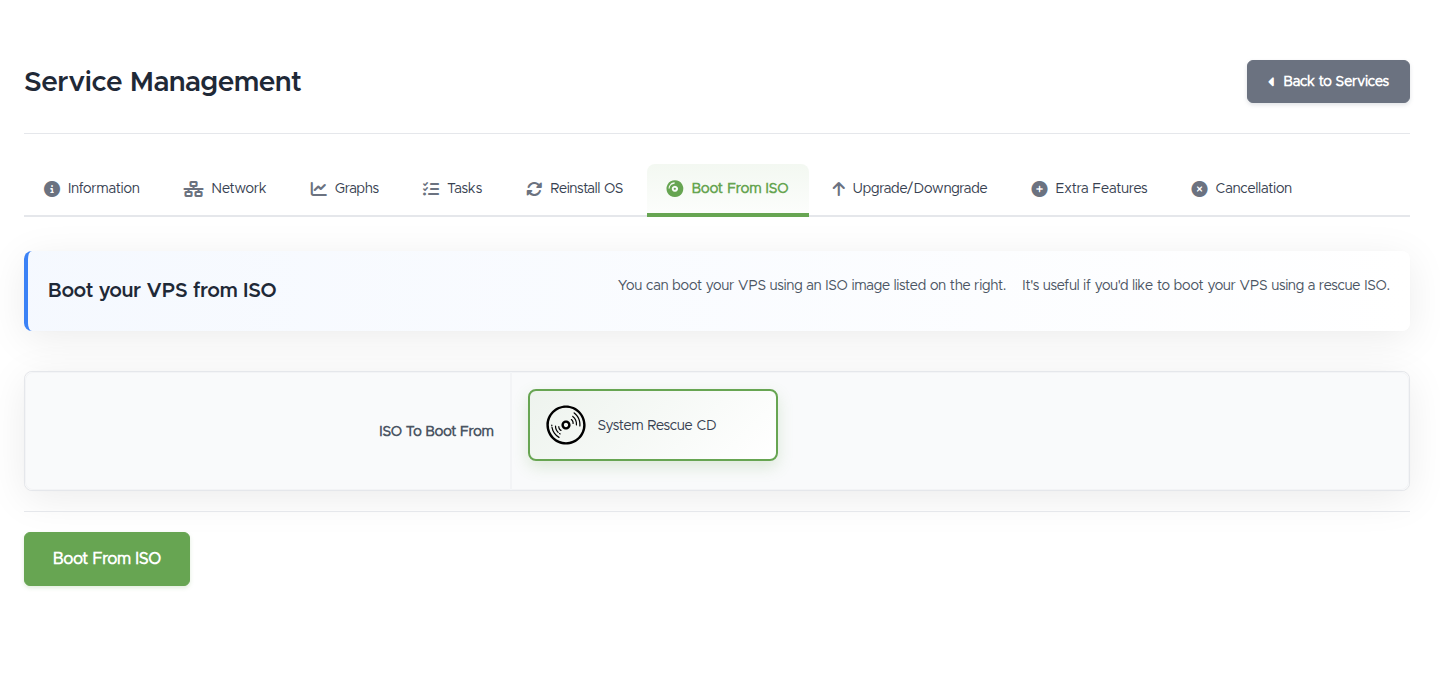
- Open Manage VPS (via https://vpsdime.com/myservices), then Boot From ISO.
- Select System Rescue CD and click Boot From ISO.
- Open the Console to see the booted ISO, the rescue environment has no SSH, so the Console is how you work in it.
- From the rescue shell, mount your disk (it's a separate device from the ISO), fix what's wrong, unmount, and reboot.
- When you're finished, reboot the VPS to boot back into your installed system. If it stays on the rescue ISO, open a ticket and we'll switch it back.
A typical rescue
If your VPS won't boot after a change:
- Boot System Rescue CD and open the Console.
- Mount your root partition (for example
mount /dev/vda1 /mnt). - Fix the cause, revert a bad
/etc/fstabline, reinstall a working kernel withchroot, run a filesystem check (fsck), or copy off data you need. - Unmount and boot from disk again.
If you're not comfortable doing this, open a ticket, tell us what changed and the exact error, and we can help.
Boot from ISO vs Reinstall
- Boot from ISO keeps your data, use it to fix a broken system or recover files.
- Reinstall OS wipes the VPS and lays down a fresh OS, use it to start over.
Try the rescue route first if the data on the VPS matters.
Still need help?
You can open a support ticket. So we can help on the first reply, it's worth mentioning:
- the VPS hostname or IP,
- what happened before it stopped booting (the change you made, the exact error on screen),
- whether you can reach the Console.
Related questions
- "My VPS won't boot, how do I rescue it?"
- "How do I boot into rescue mode?"
- "How do I recover data from a VPS that won't start?"
- "How do I fix a broken fstab or bootloader?"
- "Can I install my own OS from an ISO?"
- "What's the difference between booting an ISO and reinstalling?"