
Enabling sound on Windows VPS
What this is
Windows Server, and therefore your Windows VPS, ships with audio disabled by default. Turning it on takes a minute, and sound then plays through your Remote Desktop connection.
The easy way
- Right-click the volume icon (the one with the red X) in the system tray, then click Sounds.
- Windows asks whether to enable the Windows Audio service, accept.
- Close and reopen your Remote Desktop connection.
Sound should now work.
If that didn't do it: enable the service manually
- Right-click the Start button and open Computer Management.
- Expand Services and Applications, then click Services.
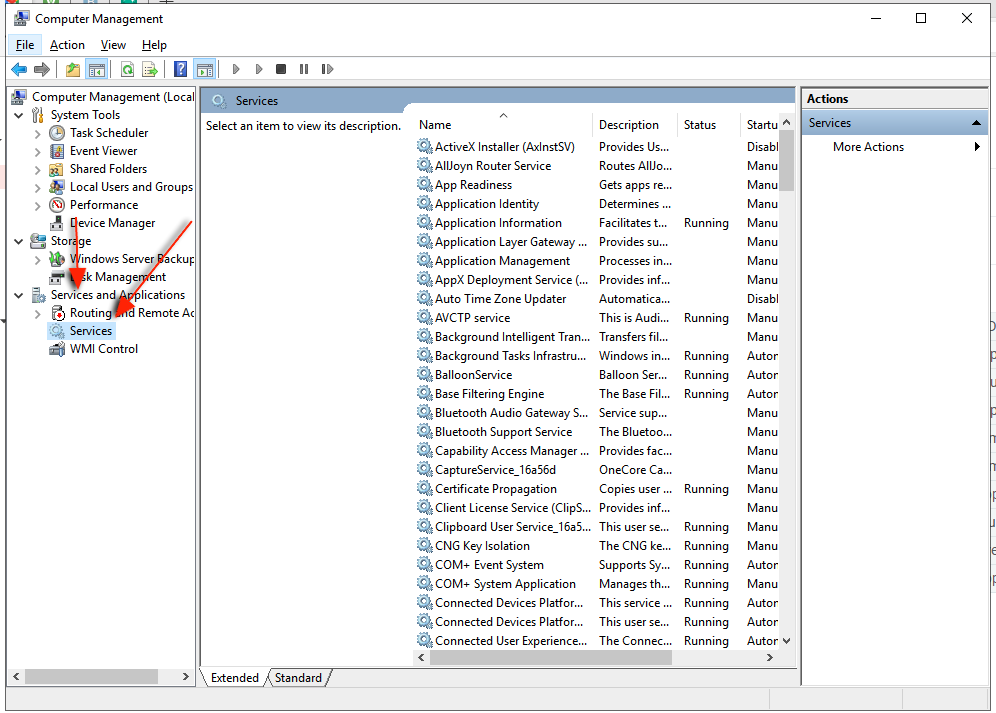
- Scroll to Windows Audio, double-click it, set Startup type to Automatic, and click Start.
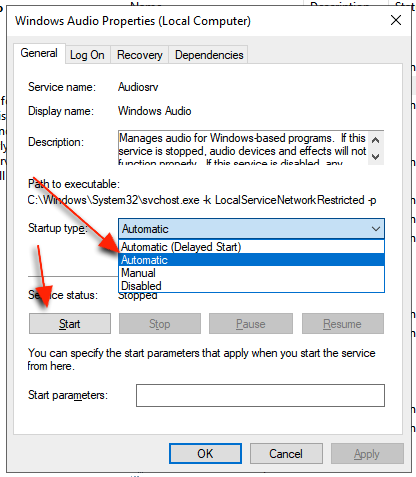
- Click OK, then close and reopen your Remote Desktop connection.
Two things to keep in mind
- Whichever method you use, sound only starts working after you reconnect the RDP session, the audio device is provided by Remote Desktop, and it's negotiated at connection time.
- Sound does not work in the browser Console in your client area; it comes through RDP only.
Still need help?
You can open a support ticket. So we can help on the first reply, it's worth mentioning:
- the VPS hostname or IP,
- whether the Windows Audio service is running and set to Automatic,
- whether you reconnected the RDP session after enabling it.
Related questions
- "Why is there no sound on my Windows VPS?"
- "How do I enable the Windows Audio service?"
- "Does audio work over RDP?"
- "Why is there no sound in the Console?"