
Managing your VPS
What this is
The Service Management page is home base for a single VPS. From here you check its health, power it on and off, get in when you can't reach it, reset the login password, and reach everything else through the tabs across the top (Network, Firewall, Reinstall OS, Upgrade/Downgrade, Extra Features, Cancellation, Graphs, Tasks, each with its own guide).
New to VPS hosting? Think of this page as the dashboard for your server. Almost anything you'd want to do to it is here or one tab away. Open it from My Services (https://vpsdime.com/myservices), then Manage on the VPS.
The page looks a little different per product: Linux VPS and Storage VPS have a Firewall tab, Premium VPS has a Boot From ISO tab, and Windows VPS shows a Label and connects over RDP. Differences are noted where they matter.
Checking your VPS at a glance
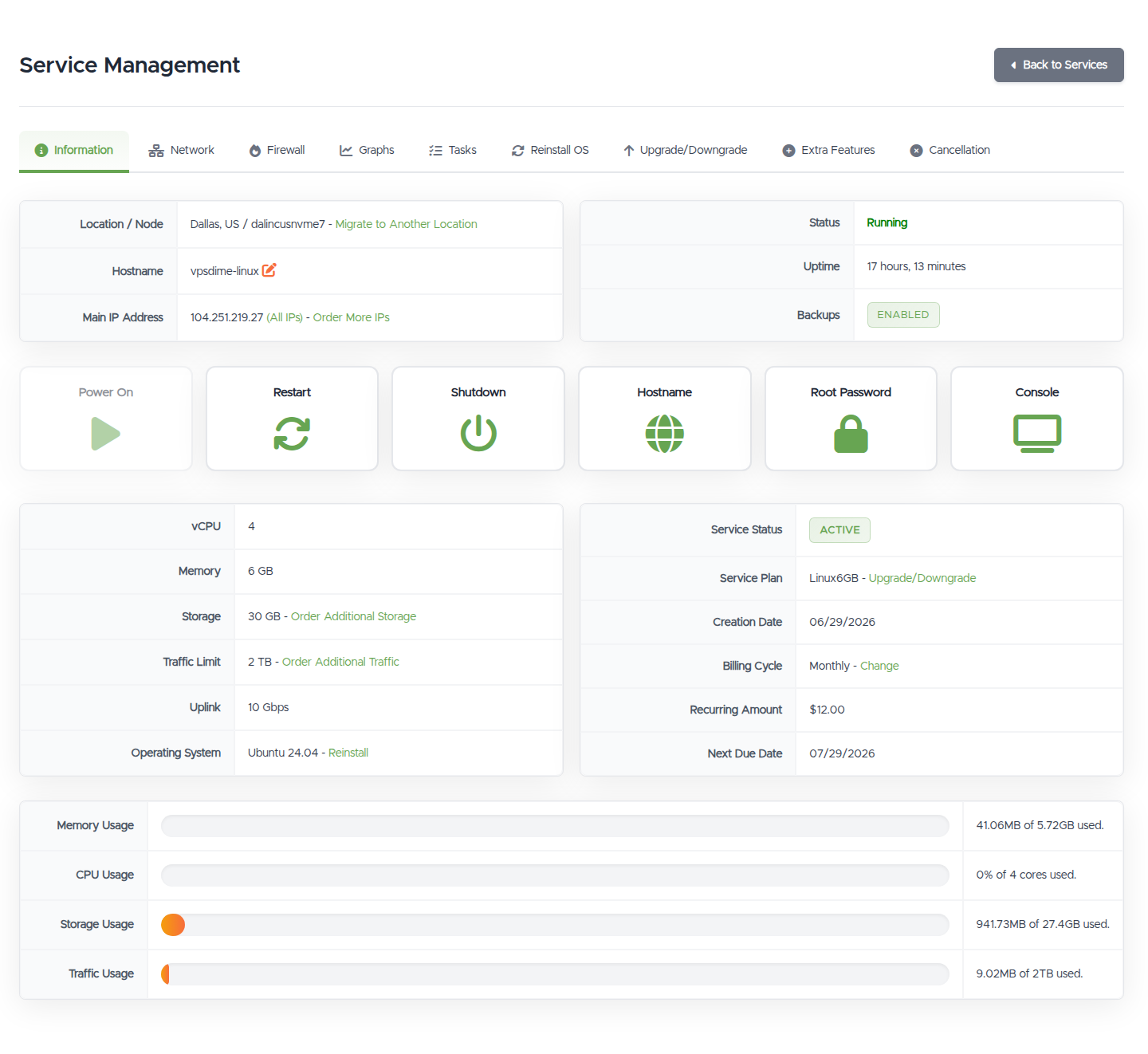
The Information tab is a quick health-and-facts summary. The parts worth knowing:
- Status and Uptime, is it running, and for how long. If it isn't running and you didn't stop it, go to My VPS is Down.
- Live usage bars (CPU, Memory, Storage, Traffic), a snapshot of how loaded it is right now. For trends over time and deciding whether to size up, use the Graphs tab.
- Your specs and OS (vCPU, RAM, storage, traffic, uplink), each with a shortcut to change it (order more storage or traffic, reinstall, upgrade/downgrade).
- Billing facts (plan, service status, billing cycle, next due date, recurring amount), so you can see what you pay and when it renews.
- IP address, hostname, and location/node.
Nothing here needs memorizing, it's the place to grab a fact fast: your IP, when the VPS renews, or how much disk is left.
Powering on, off, and restarting
The button strip controls power from outside the operating system. That matters most when the VPS is unresponsive and you can't do it from inside.

- Power On, start a VPS that's off.
- Restart is a soft reboot (the OS shuts down cleanly first). Reset is a hard reboot, the equivalent of pulling the power cord and plugging it back in.
- Shutdown is a clean power-off (you then Power On yourself). Power Off cuts power immediately.
Rule of thumb: reboot from inside the OS when you can (reboot on Linux, Restart on Windows). Use the panel's soft option (Restart/Shutdown) next, and the hard option (Reset/Power Off) only when the VPS is frozen, a hard cut can leave the filesystem needing a check on the next boot.
Which buttons you get depends on the product:
| Product | Buttons |
|---|---|
| Linux VPS | Power On, Restart, Shutdown, Hostname, Root Password, Console |
| Storage VPS | Power On, Reset, Power Off, Root Password, Reinstall OS, Console |
| Premium VPS | Power On, Reset, Shutdown, Power Off, Root Pass, Console |
| Windows VPS | Power On, Reset, Power Off, Admin Pass, Reinstall OS, Console |
(Reinstall OS here is just a shortcut to the Reinstall OS tab.)
Getting in when you can't connect
When your normal way in fails, SSH on Linux, RDP on Windows, two tools get you back:
- Console opens an out-of-band console straight to the VPS's screen, no SSH, RDP, or working network required. It's the tool for a firewall rule that locked you out, a broken network config, or a VPS that won't boot: get in, fix it, get out. It isn't meant for everyday use, connect over SSH or RDP normally. On a Windows VPS, the Console signs you into the VPSDime Support Account's session, so expect a different desktop than your own; sign out and log in as
Administratorif you need your own session.
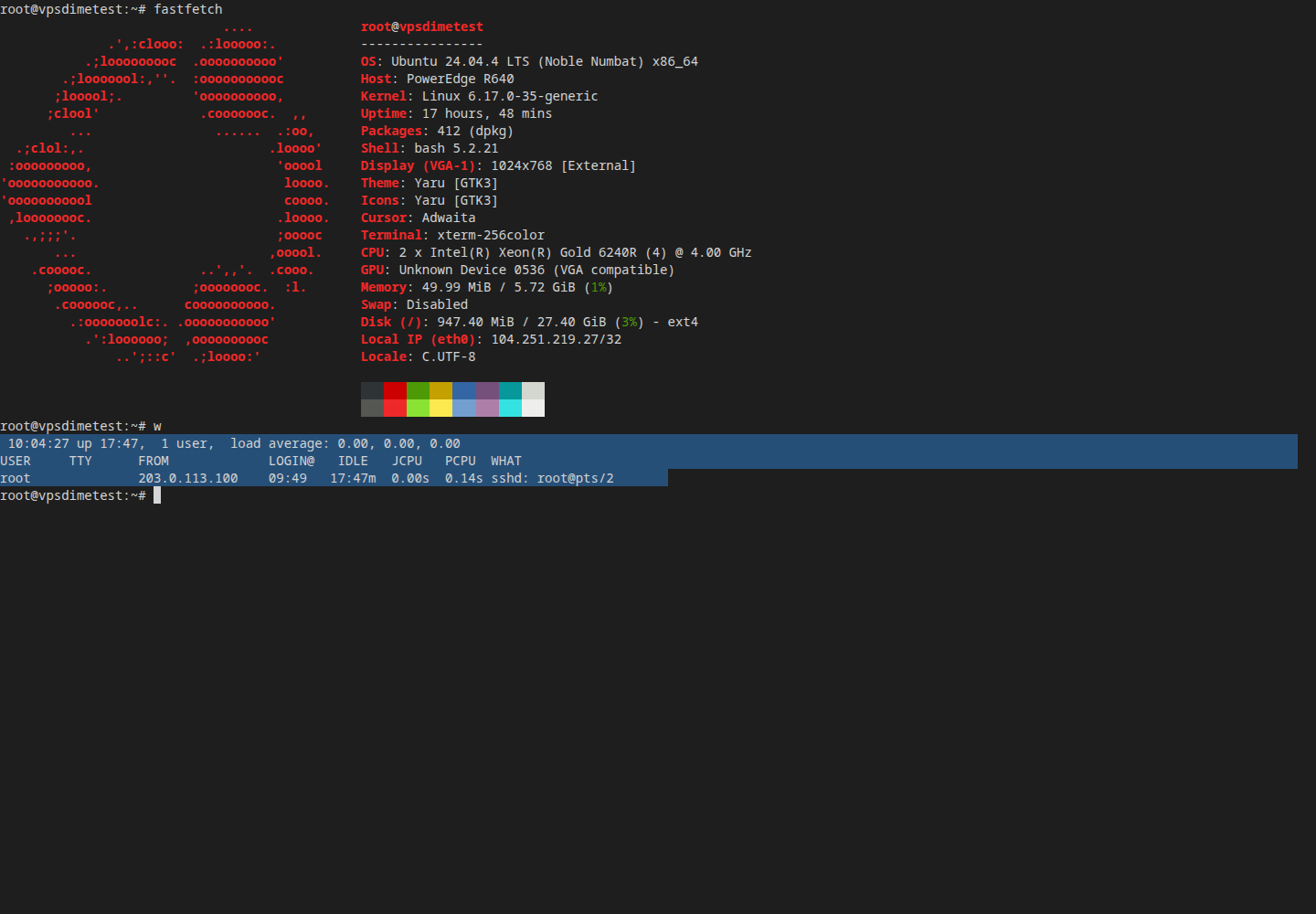
- Root Password (Linux, Storage, Premium) or Admin Pass (Windows) sets a new login password on the VPS, even while it's running. Use it if you're locked out or forgot the password. On Linux you can reset root or another user (choose "Other user" and enter the name). Generate a strong password or type your own.
Better yet, set up SSH keys so a forgotten or guessed password can't lock you out at all. And if repeated wrong passwords got your IP blocked, see the SSH firewall.
Naming and moving your VPS
-
Hostname (Linux and Storage VPS) sets the server's hostname from the Information tab. The same change can be made from inside the VPS with
hostnamectl set-hostname newname, no reboot needed, which is also the way on Premium VPS, where the panel only sets the hostname when you reinstall. Label (Windows VPS) is just a friendly name for the service in your account, it doesn't rename Windows itself.Renaming is a low-risk change. Websites answer to their domains (your web server's vhost or
server_nameconfig), not to the machine's name, so a hostname change doesn't directly affect the sites you host, unless something on the server was deliberately tied to the old name. Worth a quick check after renaming: the/etc/hostsline that maps the old name (update it, orsudoand some services get slow resolving the machine's own name), a mail server'smyhostname(Postfix) if the VPS sends mail, and any script, backup job, or monitoring agent that reads the hostname. And it's instantly reversible: if anything misbehaves after the change, set the old name back the same way and regroup. - Migrate to Another Location starts a move of your VPS to a different datacenter, for example to sit closer to your users. You pay a $4 fee, a ticket opens with our team after payment, and we perform the move. The fee is for migrating your data with the VPS; if you don't need the data, ordered the wrong location and haven't used the VPS yet, or were going to reinstall anyway, open a ticket instead and we'll re-provision it in the location you want for free. Because IP addresses belong to a location, your IP changes when you move. The decision guide and the post-move checklist (DNS, SPF, rDNS, allowlists) are in Moving your VPS to another location.
Everything else (the tabs)
Each tab has its own guide: Network (your IPs and reverse DNS), Firewall (the managed firewall, on Linux and Storage VPS), Reinstall OS, Boot From ISO (Premium VPS), Upgrade/Downgrade, Extra Features (add-ons like nightly backups, extra storage, vCPU, traffic, and IPs), Cancellation, plus Graphs and Tasks.
Product differences at a glance
- Linux VPS and Storage VPS include the Firewall tab and connect over SSH.
- Premium VPS adds a Boot From ISO tab (boot a rescue image) and has hard power controls.
- Windows VPS connects over RDP, shows a Label and an OS Status, and uses Admin Pass instead of Root Password.
Troubleshooting
- The buttons are greyed out. They enable once the live status has loaded. Give the page a moment or reload it.
- My VPS won't respond to anything. Try the Console to see its screen and get in without the network. If that fails too, run My VPS is Down, then open a ticket.
- I'm locked out / forgot my password. Reset it with Root Password / Admin Pass above. To avoid it in future, switch to SSH keys.
- I did a hard Reset/Power Off and the VPS is slow to boot or checking the disk. That's the filesystem recovering from the abrupt stop; let it finish, and prefer soft reboots next time.
Still need help?
You can open a support ticket. So we can help on the first reply, it's worth mentioning:
- the VPS hostname or IP,
- what you were trying to do and what happened,
- any error, and whether the Console works.
Related questions
- "How do I manage my VPS?"
- "How do I restart or shut down my VPS the right way?"
- "What's the difference between Restart and Reset, or Shutdown and Power Off?"
- "My VPS is frozen, how do I force a restart?"
- "How do I reset my root or Administrator password if I'm locked out?"
- "How do I get into my VPS when SSH or RDP won't connect?"
- "How do I change my VPS hostname?"
- "Can I move my VPS to another datacenter, and will my IP change?"