
Restore your VPS from a backup
What this is
Restoring rolls your entire VPS back to how it was on a chosen backup night. It's a two-step process: the restore runs first, then you verify the result and either Complete it (keep it) or Undo it (roll back). Your original disk is kept as a safety copy until you complete the restore or 7 days pass. Start from https://vpsdime.com/backups.
This applies to Linux VPS (with Nightly Backups) and Premium VPS. On a Windows VPS, restores are handled by our team, so open a ticket.
Before you start
- A full restore is destructive. It replaces your current disk with the backup and can cause downtime. Anything created since that backup won't be on the restored disk (it's preserved on your original disk until you complete or undo). Use a full restore only when you really need it. To pull back just a few files instead, see Recover individual files.
- Shut down your VPS first. The restore can't run while the VPS is powered on.
- One operation at a time. You can't start a restore while another restore, file browser, or disk download is active on that VPS.
Restore your VPS
-
Go to Backups, open your VPS, and on the Available Backups tab find the backup you want.
-
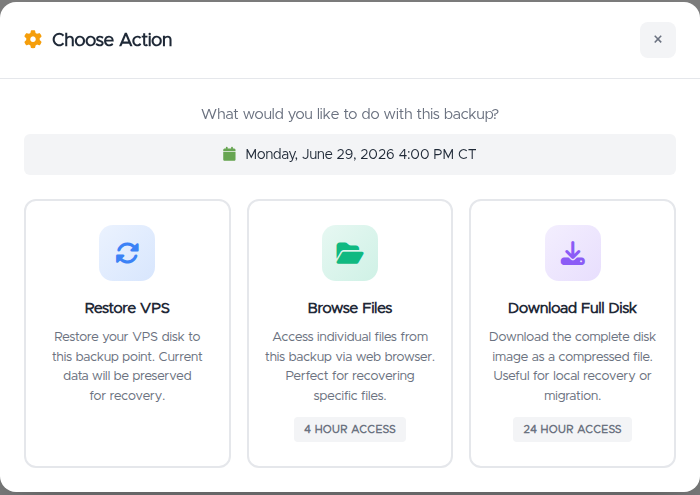
Click Actions on that backup, then choose Restore VPS in the Choose Action menu.
-
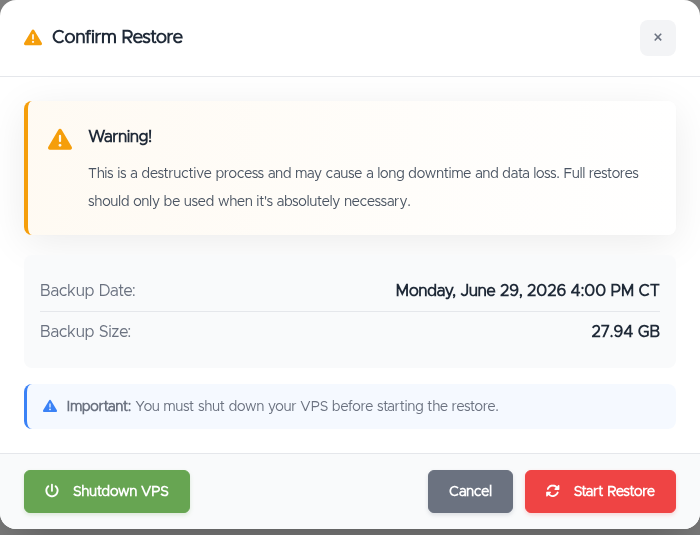
The Confirm Restore window opens. It shows the backup date and size, warns that a full restore "is a destructive process and may cause a long downtime and data loss," and reminds you: "You must shut down your VPS before starting the restore."
-
Shut down your VPS. Click Shutdown VPS in that window (it opens your VPS management page in a new tab) and power the server off.
-
Back in the Confirm Restore window, click Start Restore.
-
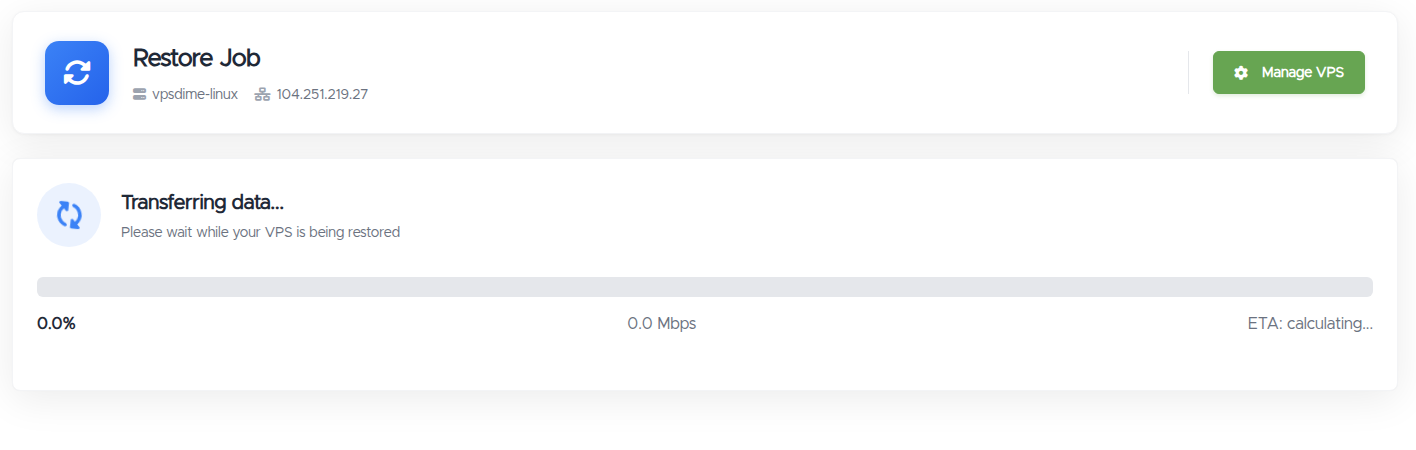
The Restore Job page opens and shows live progress ("Transferring data...") with a percentage, speed, and estimated time. Leave it to run.
After the restore: Complete or Undo
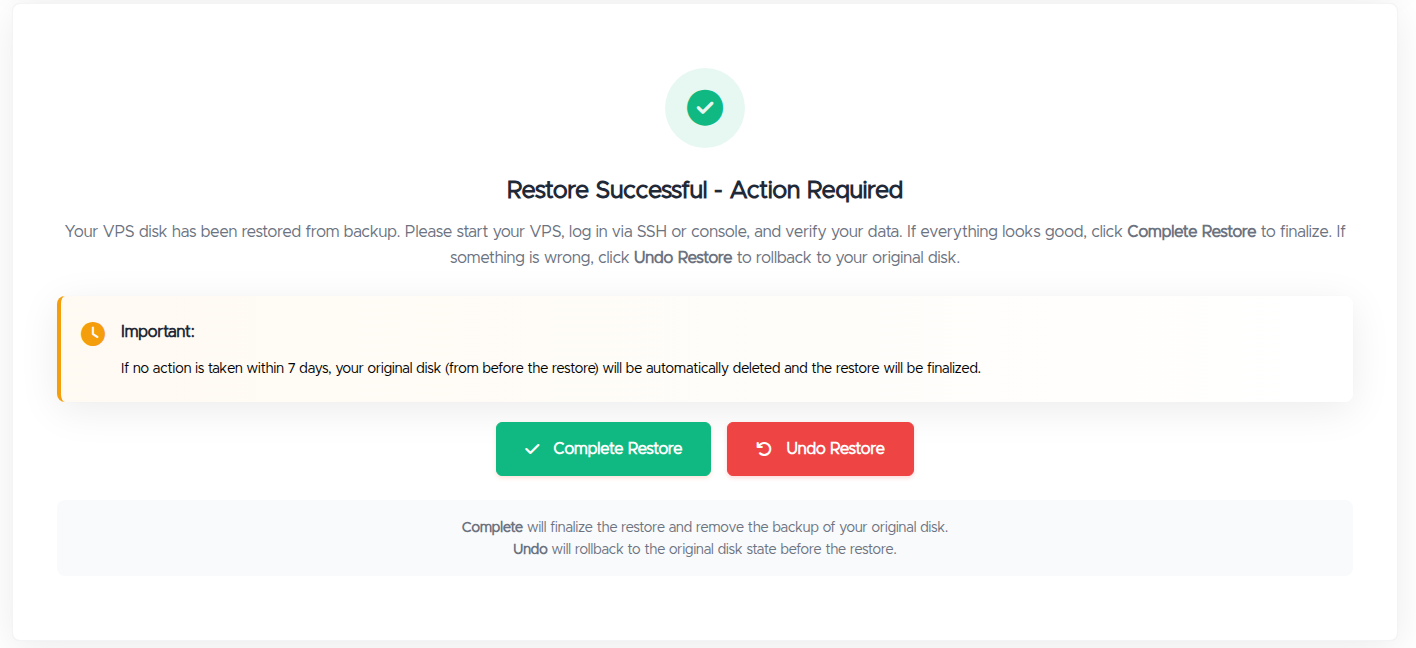
When the transfer finishes, the page shows "Restore Successful - Action Required." Your VPS is now on the restored disk, and your original disk (from just before the restore) is kept as a safety copy.
We also email you. When the restore finishes we send an email (subject: "Restore Complete — Action Required") so you don't have to watch the progress page. It explains the same two options, links back to the Restore Page to Complete or Undo, and repeats the 7-day deadline. The deadline runs from when the restore completes.
- Start your VPS and check it. Power it back on, log in over SSH or the console, and verify your files, databases, and services look right. Backups are taken while your VPS is running, so the restored disk is crash-consistent, the same as if the server had lost power at that moment. Most databases recover from this automatically when they start. In some cases a database may not recover cleanly, so check your databases specifically.
- Then choose one:
- Complete Restore: keeps the restored version. This permanently removes the safety copy of your original disk and can't be undone.
- Undo Restore: rolls back to your original disk, the exact state from before the restore. Anything changed after the restore is lost.
Each choice asks you to confirm. Completing warns "This action is irreversible," and Undo warns that changes made after the restore will be lost.
7-day deadline: if you don't Complete or Undo within 7 days, your original disk is deleted automatically and the restore becomes permanent. After that you can no longer undo it. It's best to check and decide as soon as you can.
If you're unsure whether the restore looks right, open a ticket and we'll help you check before you decide.
Picking up a restore later (Restore History)
You don't have to finish in one sitting. A restore that's waiting on you stays available:
- On your VPS's backup page you'll see a Restore In Progress or Restore Pending Action notice with a Go to Restore button.
- The Restore History tab lists your restores with a status:
- In Progress / Verifying: still running.
- Pending Action: finished and waiting for you to decide. Use Complete, Undo, or View to act on it.
- Completed: the restore was finalized.
- Undone: the restore was rolled back to the original disk.
- Failed: the restore didn't finish (see below).
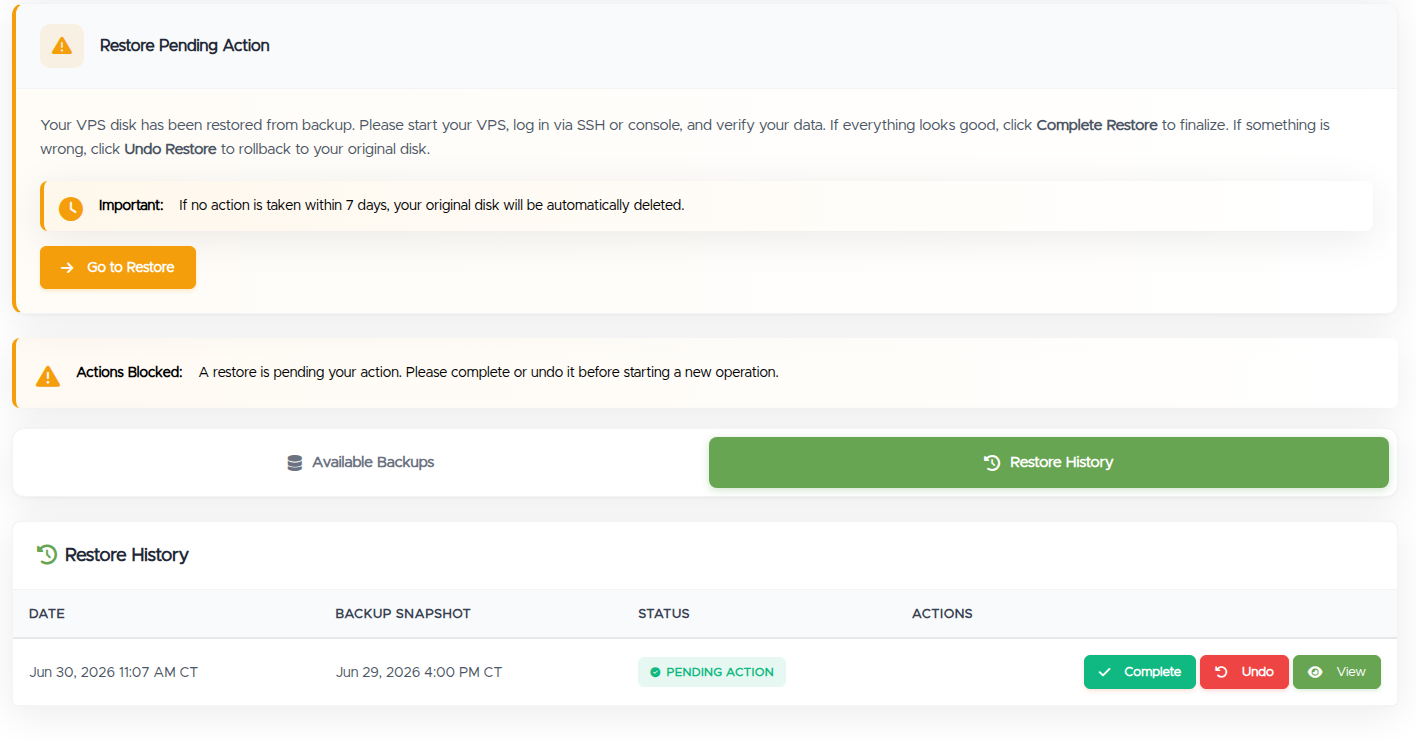
The 7-day deadline applies to anything left at Pending Action.
If a restore fails
If the page shows Restore Failed, the restore didn't complete and your VPS is unchanged. You can try again from the Available Backups tab, or open a ticket with the backup date and we'll look into it.
Troubleshooting
- "Actions Blocked," or I can't start a restore. Another operation is active on that VPS: a running or pending restore, or an open file browser or disk download. Finish it, complete/undo it, or stop it first. A pending restore shows a Go to Restore button.
- The restore won't start and asks me to shut down. The VPS must be powered off first. Shut it down from your VPS management page, then click Start Restore.
- My recent changes are gone after restoring. A restore returns the VPS to the backup night, so newer changes aren't on it. If you haven't completed the restore yet, use Undo Restore to get your original disk back.
- My database won't start cleanly after a restore. Because backups are crash-consistent, a database may need its normal crash-recovery step on first start, and on rare occasions can't recover fully. Run the database's recovery process, try a different backup, or open a ticket.
- I have a Windows VPS. Restores are handled by our team. Open a ticket.
Still need help?
You can open a support ticket. So we can help on the first reply, it's worth mentioning:
- the VPS hostname or IP,
- the backup date you restored or want to restore,
- whether the restore is in progress, pending your action, or failed,
- what looks wrong, if anything.
Related questions
- "How do I restore my VPS from a backup?"
- "Do I have to shut down my VPS to restore it?"
- "What's the difference between Complete and Undo?"
- "I restored my VPS, how do I keep it or roll it back?"
- "What happens if I don't complete the restore?"
- "Do you email me when the restore is finished?"
- "Can I undo a restore?"
- "My restore failed, what now?"
- "Will my database be intact after a restore?"
- "How do I restore a Windows VPS?"