
My Administrator password doesn't work
What this is
Your Windows VPS rejects the Administrator password at the RDP login. Two checks solve nearly every case, and one look-alike error, about license servers, isn't a password problem at all (covered below).
1. Check what you're actually pasting
The password came in your provisioning email ("New Windows VPS - Provisioning Started"). When copying from email, it's very easy to pick up whitespace before or after the password, which makes a correct password wrong. Paste it into a plain text field first to inspect it, or re-select it carefully character to character.
Also confirm the username is exactly Administrator, and that you're connecting to the right IP if you have several servers.
2. Let the troubleshooter test and reset it
The Windows Troubleshooter does the definitive check: it verifies your VPS is powered on, that Remote Desktop is enabled, and whether the password on file actually works against the server.
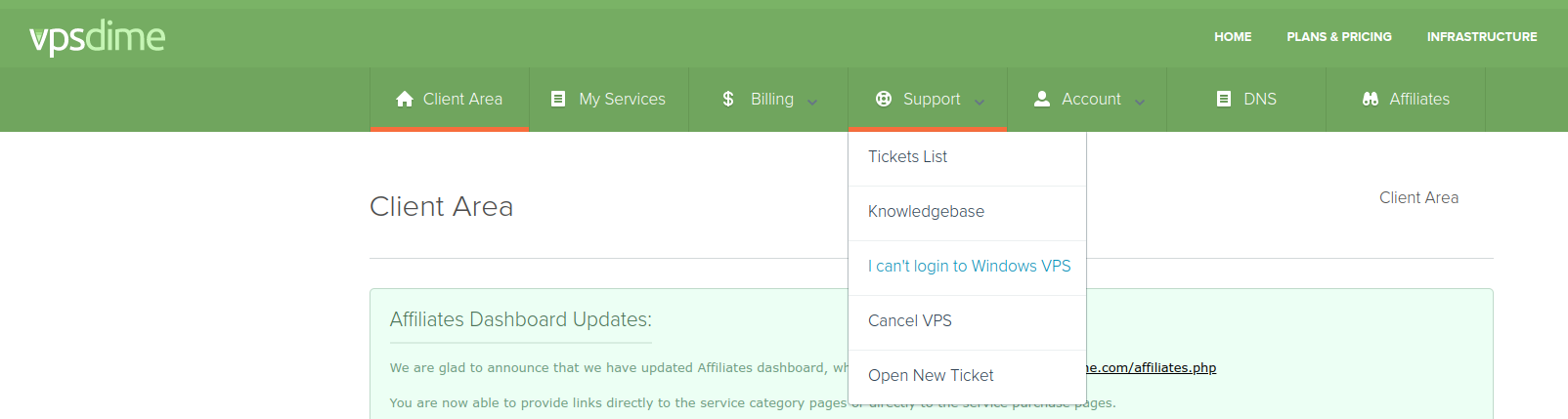
- In your client area, open Support in the top menu and click "I can't login to Windows VPS" (or go to https://vpsdime.com/wintroubleshooter), then pick the VPS.
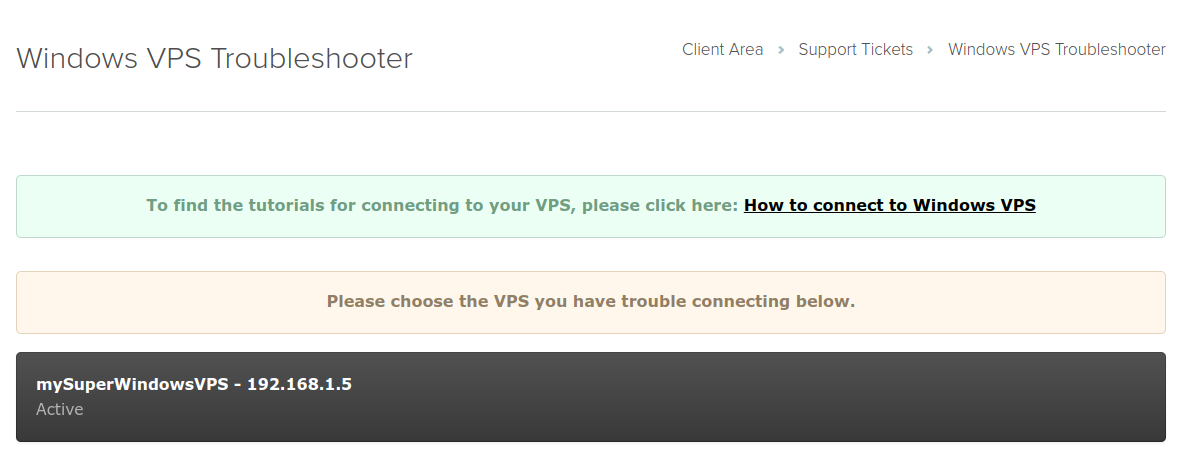
- It runs the checks against your VPS.
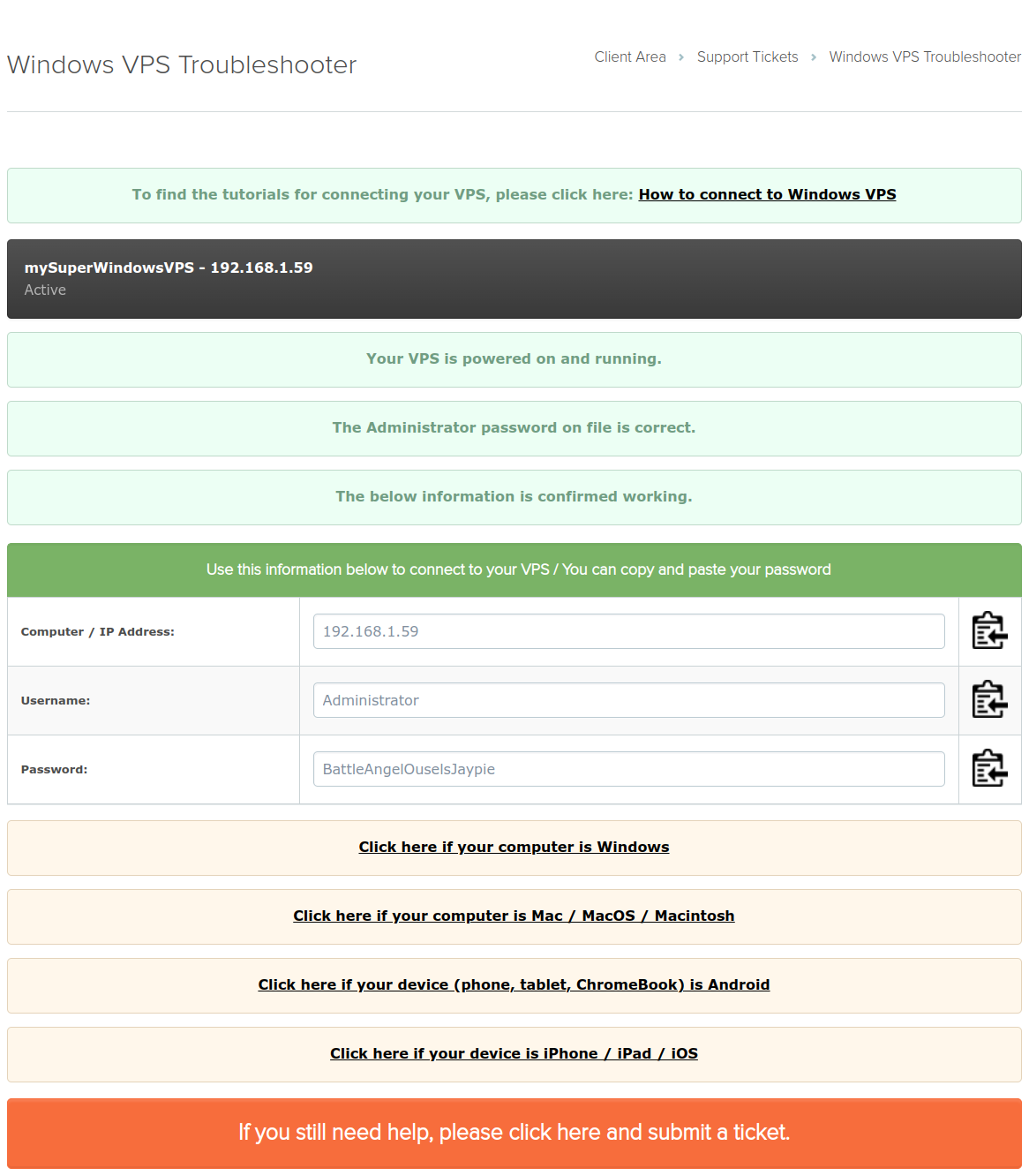
- If the password on file doesn't work, it offers a reset option right on the page. If everything checks out, it shows your working credentials with copy-to-clipboard buttons, so you can paste them cleanly into your RDP client.
If the error mentions license servers, it's not the password
One failure wears a password-problem disguise. If the Remote Desktop Session Host role was installed on the server (often ticked during a domain or multi-user setup) and never pointed at a licensing server, Windows grants a 120-day grace period, then stops issuing normal RDP sessions. From that day, logins fail no matter how correct the password is, most recognizably with:
The remote session was disconnected because there are no Remote Desktop License Servers available to provide a license.
The password is fine; the RD licensing grace is what expired. The way back in is the Console in your client area, console sessions aren't gated by RD licensing. From there you can reset the grace period to get RDP accepting sessions again (delete the GracePeriod key under HKLM\SYSTEM\CurrentControlSet\Control\Terminal Server\RCM, you'll need to take ownership of it first, then reboot), but treat that as a stopgap: it restarts the same 120-day clock, it doesn't license anything. Fix the cause while you're in there:
- Remove the role if you don't actually use it. Without it, Windows returns to its built-in two-admin-session model, which never expires:
Uninstall-WindowsFeature RDS-RD-Server -Restart - Or configure it properly if you genuinely need more than two concurrent sessions: an RD Licensing server with purchased RDS CALs, and the Session Host pointed at it.
The full walkthrough, including the other ways a domain setup breaks RDP logins, is in Can't RDP into your Windows VPS after joining a domain.
If the reset doesn't work (or isn't offered)
The troubleshooter's reset works through the VPSDime Support Account, a service user starting with DIME that we add to every Windows VPS at provisioning. If you (or someone hardening the server) removed that account, self-service resets can't reach your VPS anymore, in that case a manual reset by our team is the path, and it carries a $25 fee.
Still locked out?
If the troubleshooter's checks pass, the password resets, and you still can't get in, finish the troubleshooter flow, it escalates into a ticket with the diagnostics attached, or open a ticket with the VPS IP and what the RDP client says.
Related questions
- "My Windows VPS says the password is wrong."
- "How do I reset my Administrator password?"
- "Why does the password from my email not work?"
- "How do I check if RDP is enabled on my VPS?"
- "RDP says no Remote Desktop License Servers are available, is my password wrong?"
- "Why did RDP logins stop working 120 days after setting up my server?"