
My Services (your services list)
What this is
My Services (https://vpsdime.com/myservices) lists every service on your account in one table and is the front door to everything per-VPS: click a service to open its Service Management page, jump straight to a billing-cycle change, or pay the invoice a pending service is waiting on.
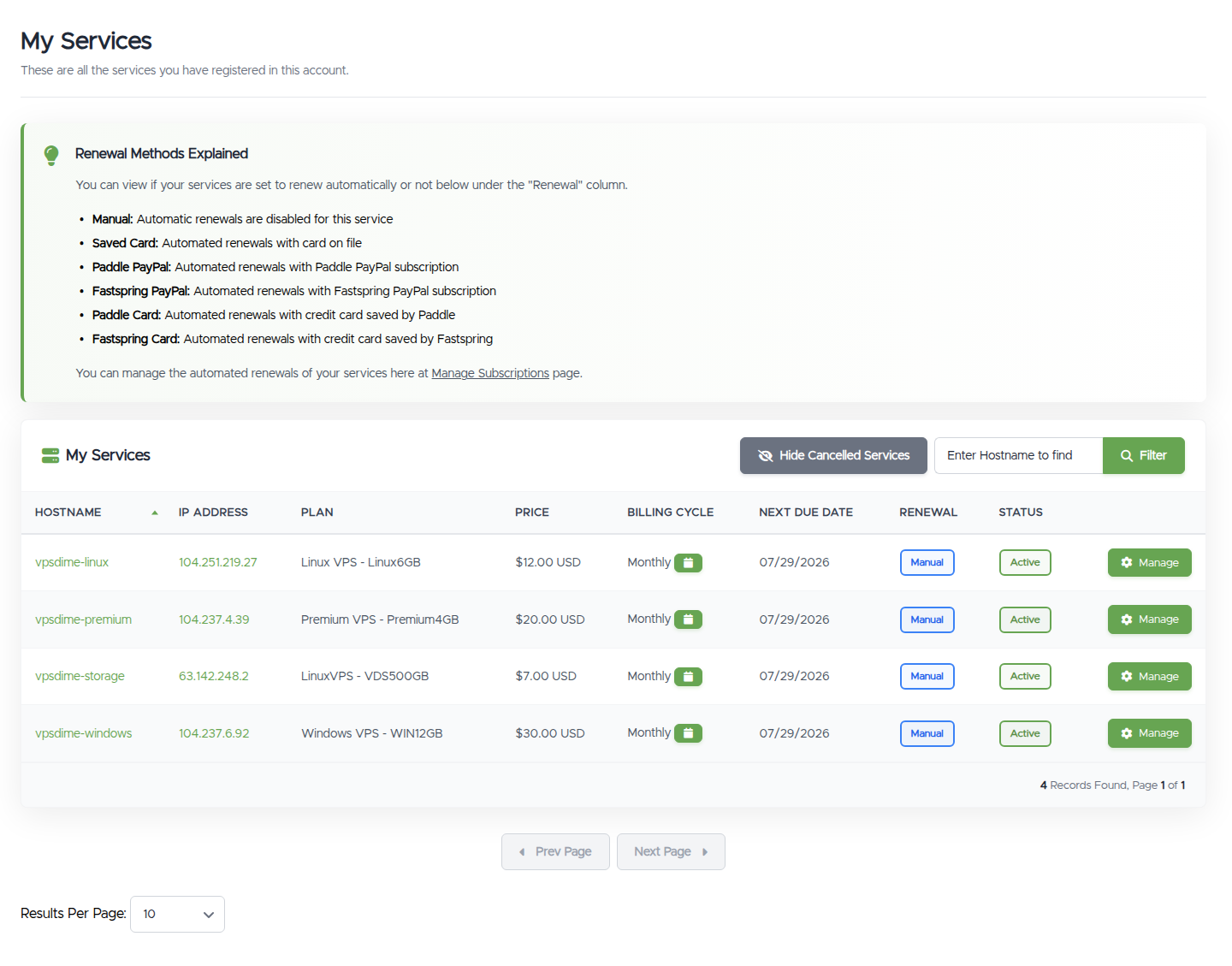
Reading the list
Each row is one service:
- Hostname and IP Address both click through to the service's management page (for services that are running or suspended; a cancelled service isn't clickable).
- Plan: the product line and plan, for example Linux VPS - Linux6GB.
- Price and Billing Cycle: what you pay and how often. The small calendar button next to the cycle takes you straight to changing the billing cycle for that service.
- Next Due Date: when the service renews next. Renewal invoices are generated 14 days ahead, see when invoices are due. The date itself is adjustable: prepay months, move it to a day that suits you, or line several services up to renew together.
- Renewal: how the service renews. Manual means you pay each invoice yourself; Saved Card, Paddle PayPal / Paddle Card, and Fastspring PayPal / Fastspring Card are the automatic options. The Renewal Methods Explained note at the top of the page is the key for these labels, clicking a label takes you to Automatic renewals (or Saved cards) to change it.
- Status: Active, Pending, Suspended, Cancelled, or Terminated. A service you've asked to cancel at the end of its billing period shows Pending Cancellation while it keeps running, see Cancelling a VPS, including how to revoke it.
The action button
The last column depends on the service's state:
- Manage, for a running service, opens Manage VPS. A suspended service shows a warning-styled Manage button, the usual cause is an unpaid invoice, and paying it reactivates the service automatically.
- Pending Payment, for a new order whose invoice isn't paid yet, links straight to that invoice. If you placed the order by mistake, a Cancel button appears next to it: this abandons the whole order and cancels its unpaid invoice, so use it only if you don't want the service (it's available only while the order is still pending, unpaid, and nothing on it has been provisioned). If you do nothing, our system cancels an unpaid pending order automatically after 3 days.
- Pending Activation, paid and being provisioned; you'll get an email when it's ready.
- Cancelled and terminated services have no actions.
Finding and sorting
With more than a few services, the tools at the top earn their keep: the search box filters by hostname, the Hostname, Price, Billing Cycle, Next Due Date, and Status column headers sort the list, and Results Per Page at the bottom raises the page size.
Hiding cancelled and terminated services
Old cancelled and terminated services stay in the list by default, which gets noisy after a few years. To hide them, click Hide Cancelled Services at the top of the list: the list then shows only your pending, active, and suspended services, and the button becomes Show All Services for whenever you want the history back.
The choice is saved to your account, so it sticks across visits and devices. It's the same preference as the Product Listing - Show Active Only checkbox on Account Details, ticking the box there and clicking the button here flip the same switch, so you can change it from either place.
Still need help?
You can open a support ticket. So we can help on the first reply, it's worth mentioning:
- the service (hostname or IP) the question is about,
- what looks wrong on the list (a screenshot helps).
Related questions
- "Where do I see all my services?"
- "How do I hide cancelled or terminated services from My Services?"
- "What does the Renewal column on My Services mean?"
- "Why does my service say Pending Cancellation?"
- "What does Pending Payment or Pending Activation mean?"
- "How do I search or sort my services list?"