
Viewing your backups
What this is
Where to find your VPS backups in the client area and what each part of the page shows. From here you can pick a backup to restore, browse its files, or download it (each covered in its own guide).
Open your backups
- In the client area, click Backups in the left sidebar. You'll see a list of every VPS that has at least one completed nightly backup.
- Click the Backups button next to a VPS to open that VPS's backup list. (The Restores button opens the same page on its Restore History tab.)
The VPS list
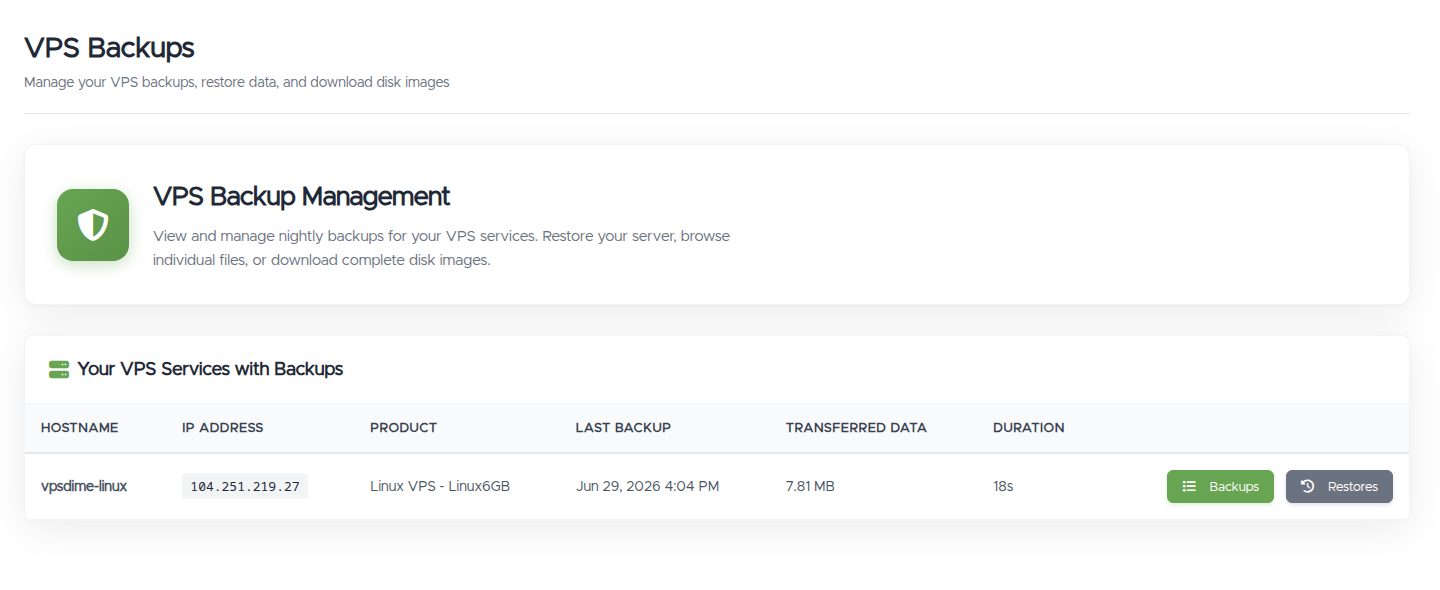
The Backups page (https://vpsdime.com/backups) lists each VPS that has backups and shows, per VPS:
- Hostname and IP Address: which VPS it is.
- Product: the plan, for example Linux VPS - Linux6GB.
- Last Backup: when the most recent backup ran.
- Transferred Data: how much data the last backup moved.
- Duration: how long the last backup took.
If no VPS has a completed backup yet, the page reads "No nightly backups have run, yet."
The Available Backups tab
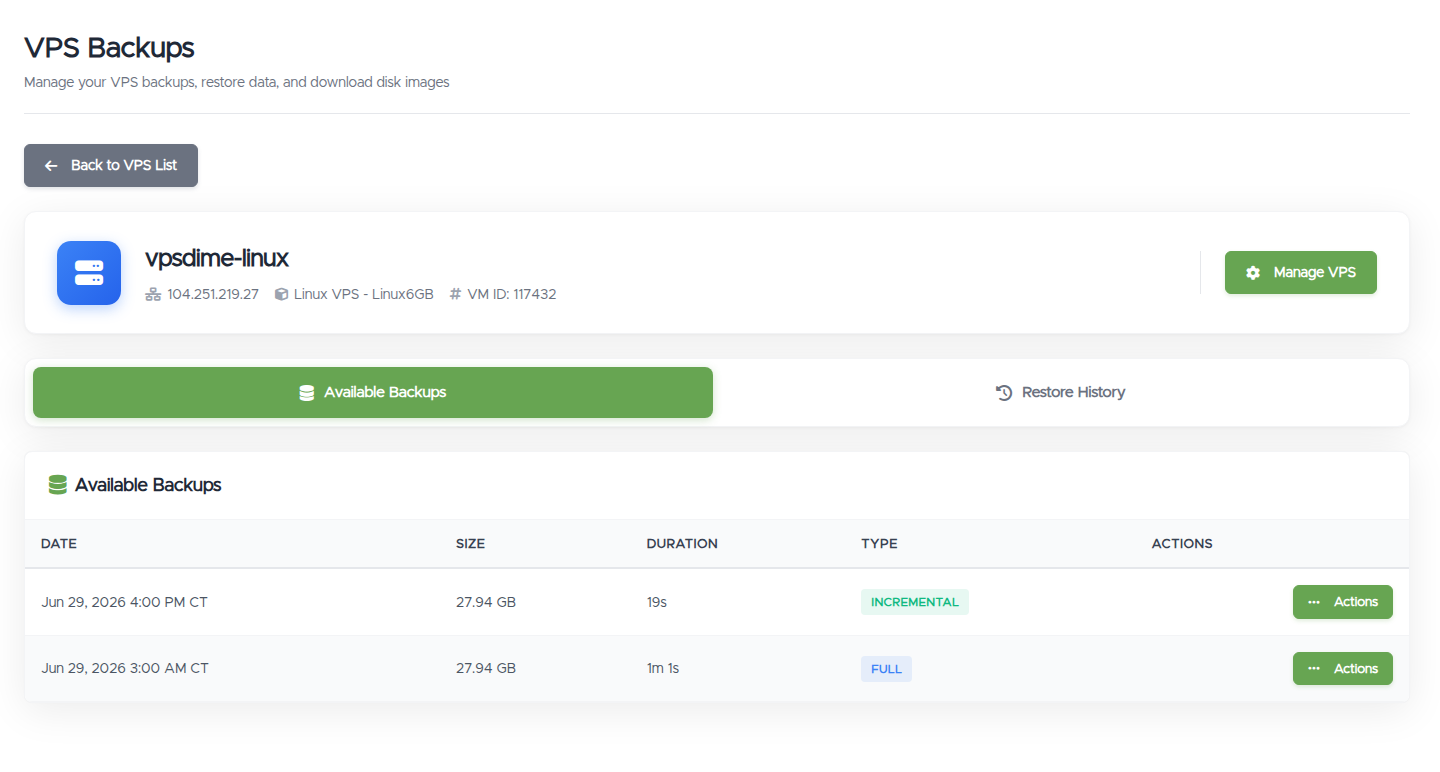
Open a VPS to see its backups under the Available Backups tab. Each row is one backup:
- Date: when the backup was taken (Central Time).
- Size: the size of that backup.
- Duration: how long it took to create.
- Type: Full or Incremental. This only tells you how the backup was stored. It doesn't change how you restore or what you can recover. Any backup in the list can be restored, browsed, or downloaded.
- Actions: opens a menu to Restore VPS, Browse Files, or Download Full Disk for that backup.
You'll usually see up to three backups here, one per night, matching the 3-day retention.
For what each action does, see:
The Restore History tab
The Restore History tab on the same page lists your past and in-progress restores and their status. See Restore your VPS from a backup for how restores work.
Troubleshooting
- The list is empty or my VPS isn't there. A VPS appears only after its first nightly backup completes. If you just enabled Nightly Backups, check back after the next night. See Turn on Nightly Backups.
- I expected more backups. Retention is three nights, so the list holds your three most recent backups. Older ones are removed automatically.
- The Actions button is disabled. Another backup operation (a restore, file browser, or download) is already running for that VPS. Finish or stop it first. See Restore your VPS from a backup.
Still need help?
You can open a support ticket. So we can help on the first reply, it's worth mentioning:
- the VPS hostname or IP,
- the backup date you're looking at,
- what you're trying to do with it.
Related questions
- "Where do I find my VPS backups?"
- "How many backups do I have?"
- "What does the Full or Incremental label mean?"
- "What does Transferred Data mean on the backups list?"
- "Why is my VPS not listed on the Backups page?"
- "What can I do with a backup?"